> ## Documentation Index
> Fetch the complete documentation index at: https://knowledge.goautonomous.io/llms.txt
> Use this file to discover all available pages before exploring further.
# Salesforce Connector Guide
> Step-by-step guide to connecting Go Autonomous with your Salesforce instance.
## Install from Salesforce AppExchange
The Salesforce environment admin installs the application. Navigate to [the Go Autonomous listing on Salesforce AppExchange](https://appexchange.salesforce.com/appxListingDetail?listingId=a0N4V00000G21jxUAB\&tab=d) and find Go Autonomous.
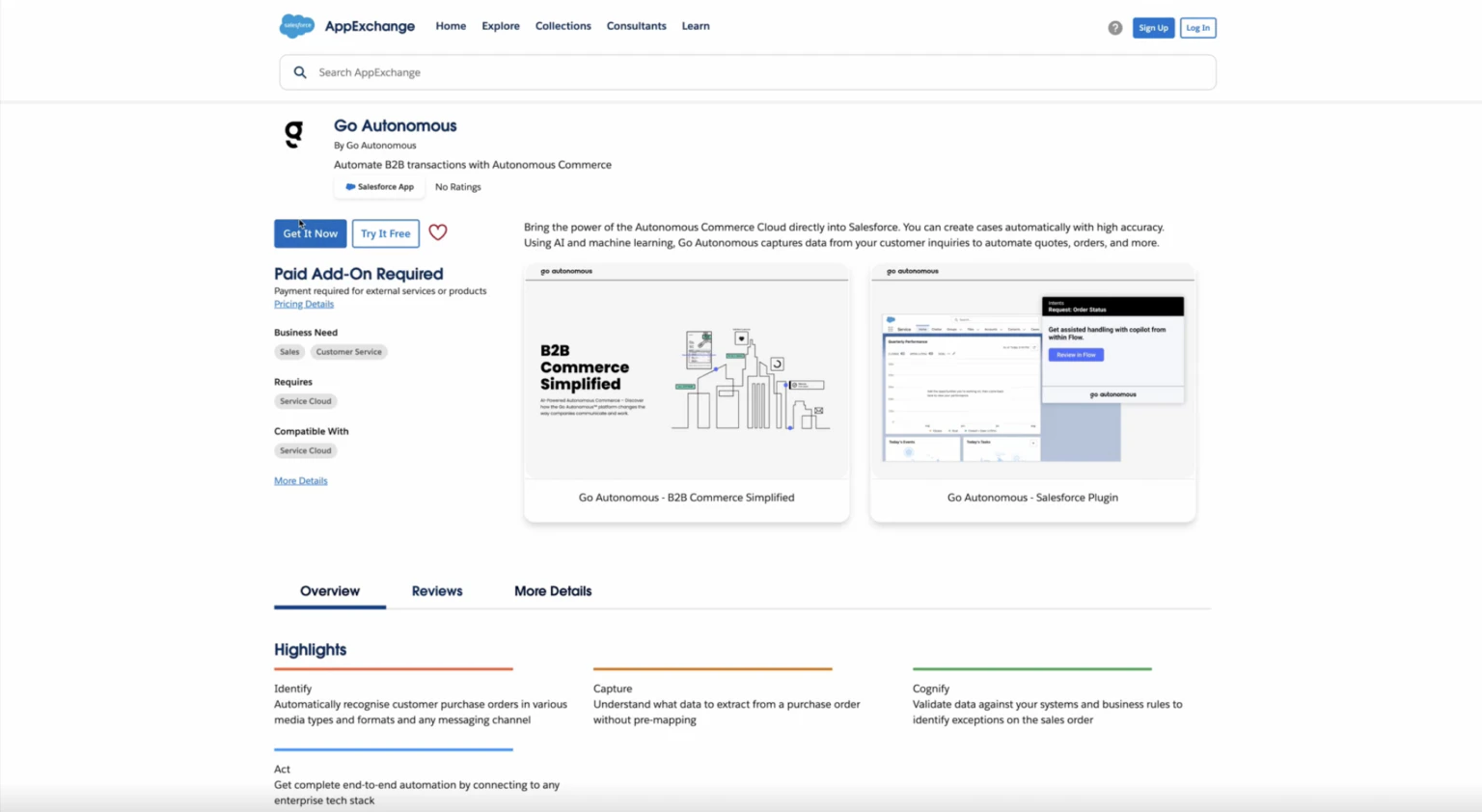 After pressing **Get it Now**, Salesforce will redirect you to a new tab where you select which environment to install into. If you are unsure, reach out to your Go Autonomous Customer Success Manager.
After confirming the environment and agreeing to the terms and conditions, you will be navigated to the **Install Go Autonomous** page. Select **Install for Specific Profiles**.
After pressing **Get it Now**, Salesforce will redirect you to a new tab where you select which environment to install into. If you are unsure, reach out to your Go Autonomous Customer Success Manager.
After confirming the environment and agreeing to the terms and conditions, you will be navigated to the **Install Go Autonomous** page. Select **Install for Specific Profiles**.
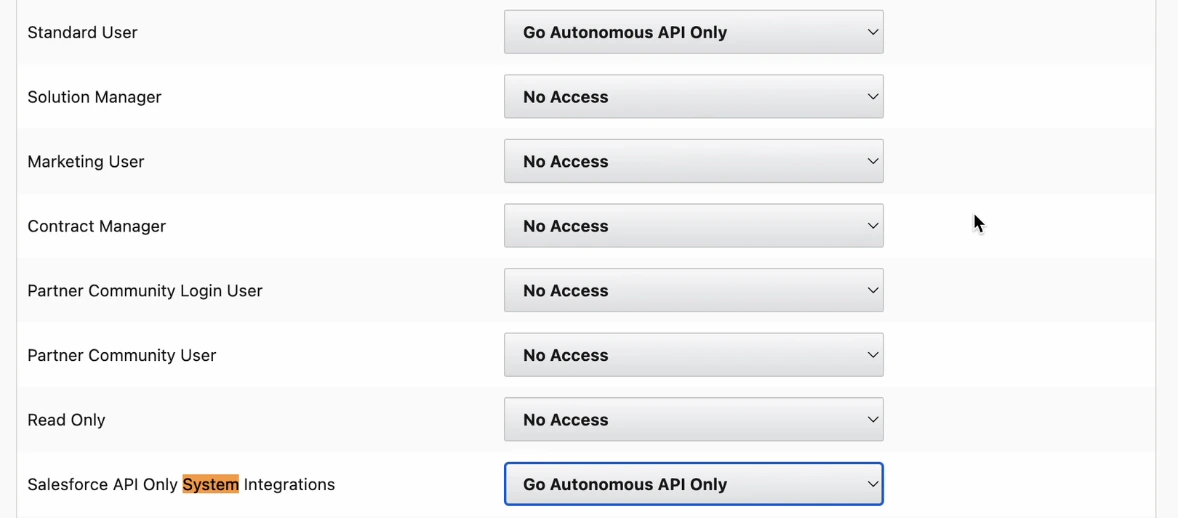
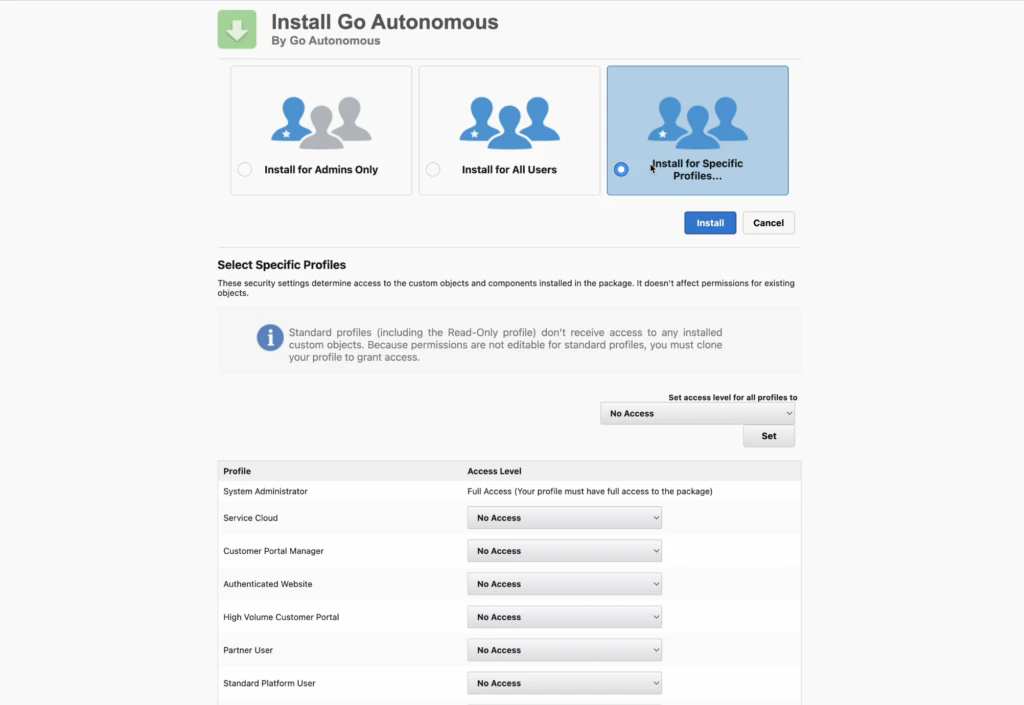 Scroll through the profile list and set the following profiles to **Go Autonomous API Only**:
1. Standard User
2. Sales API Only System Integrations
Scroll through the profile list and set the following profiles to **Go Autonomous API Only**:
1. Standard User
2. Sales API Only System Integrations
 Scroll back to the top and press **Install** under the **Install for Specific Profiles** button.
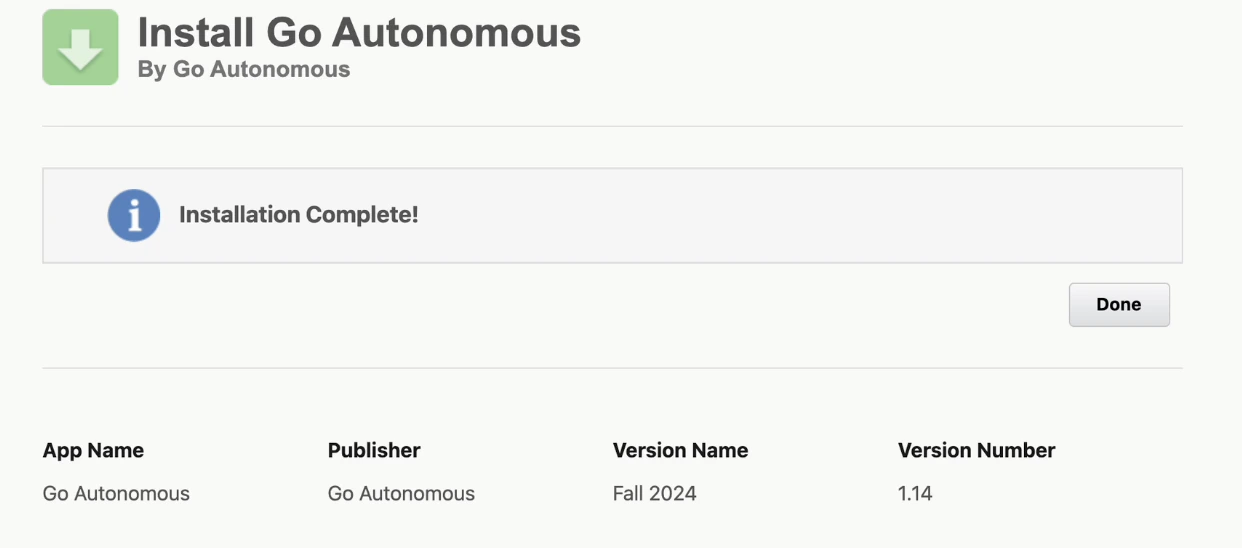
Wait for the package to finish installing. Once complete, a success notification appears. Press **Done** to return to Salesforce.
Scroll back to the top and press **Install** under the **Install for Specific Profiles** button.
Wait for the package to finish installing. Once complete, a success notification appears. Press **Done** to return to Salesforce.
 ***
## Create a profile and configure the user
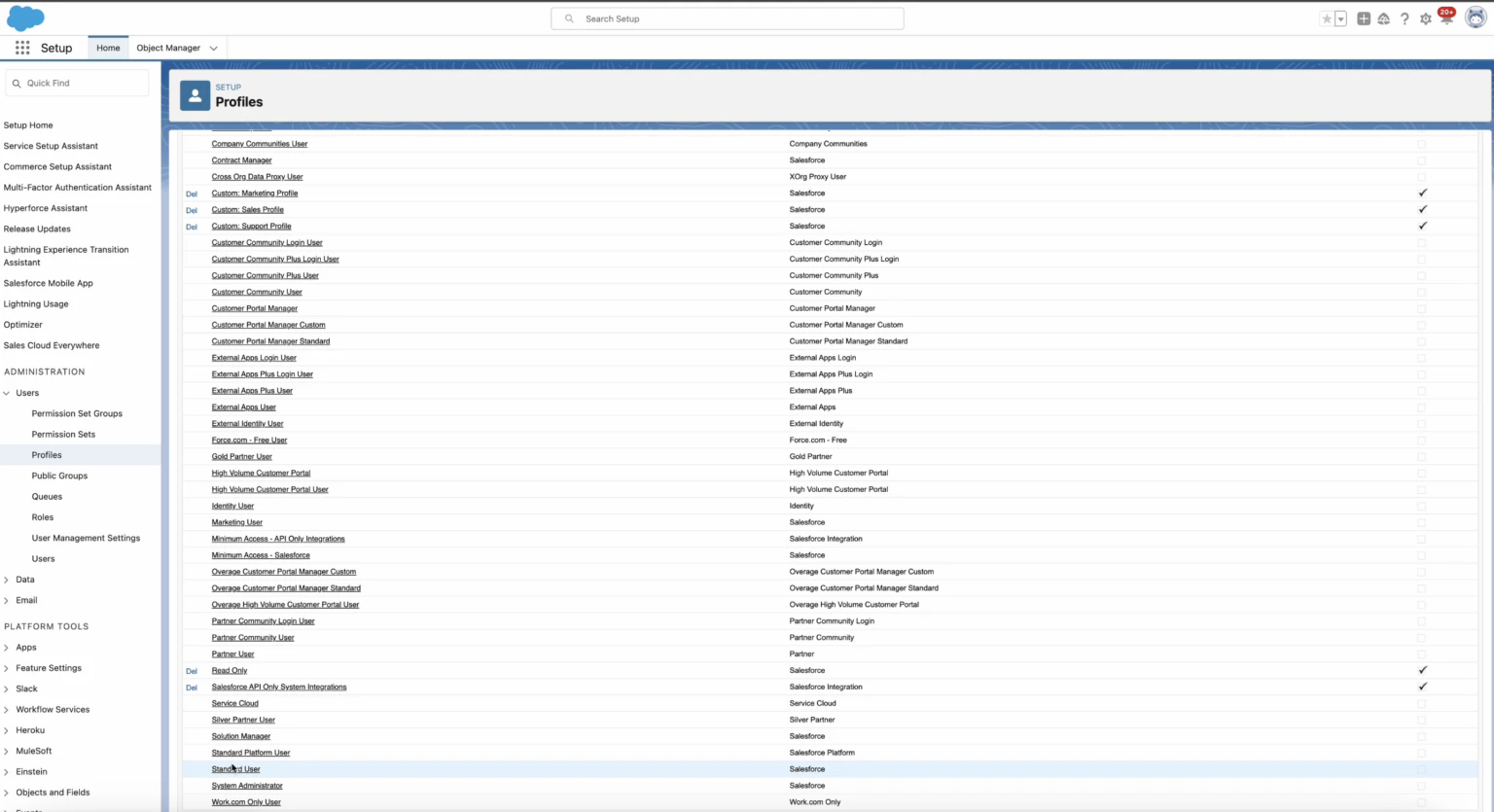
In Salesforce Setup, use the left navigation pane to find **Administration > Users > Profiles**. Find **Standard User** in the profile list.
***
## Create a profile and configure the user
In Salesforce Setup, use the left navigation pane to find **Administration > Users > Profiles**. Find **Standard User** in the profile list.
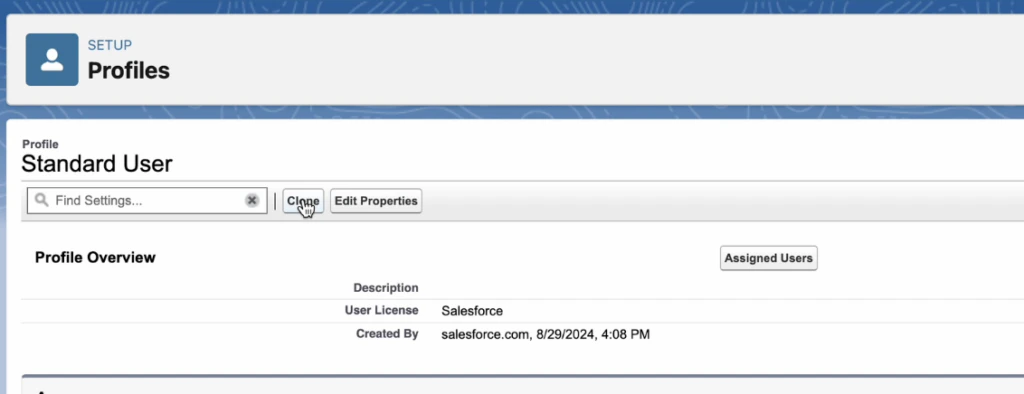
 Inside the Standard User Profile, press **Clone**.
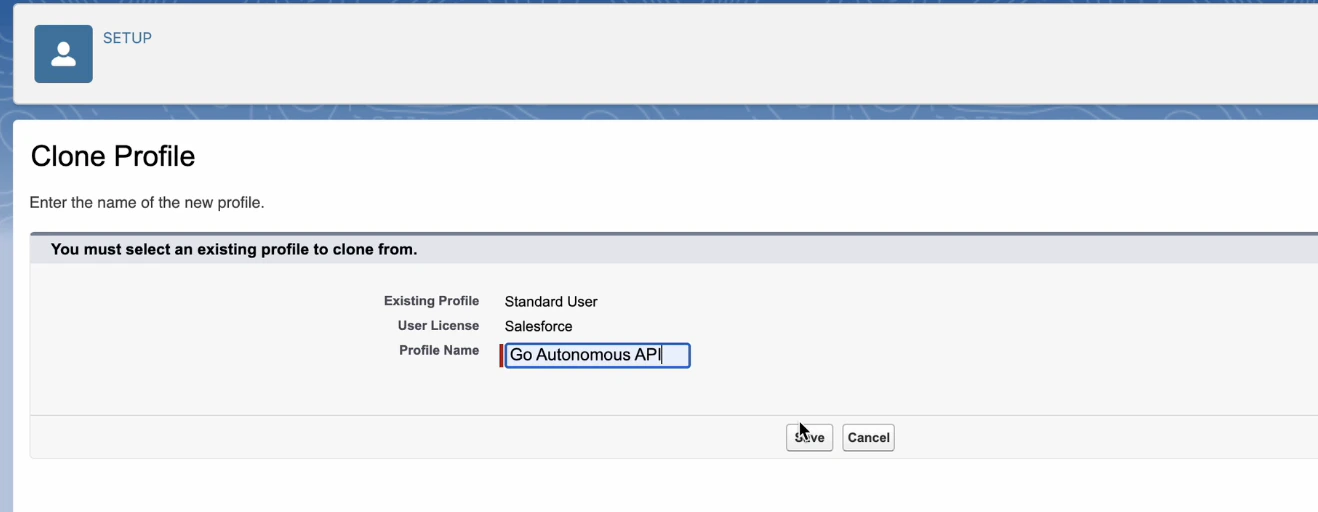
 Enter **Go Autonomous API** as the profile name, then press **Save**.
 Click **Edit** on the new profile and set the following permissions:
**Administrative permissions:**
* Access Libraries
* Apex REST Services
* API Enabled
* API Only User
* Edit Read Only Fields
* Select Files from Salesforce
**General user permissions:**
* Assign Topics
* Create Topics
* Edit Tasks
* Edit Topics
**Standard object permissions:**
| Object | Read | Create | Edit | View All |
| --------- | ---- | ------ | ---- | -------- |
| Accounts | ✓ | | | ✓ |
| Cases | ✓ | ✓ | ✓ | ✓ |
| Contacts | ✓ | | | ✓ |
| Customers | ✓ | | | ✓ |
| Documents | ✓ | ✓ | ✓ | ✓ |
Save the profile once all permissions are configured.
After clicking **Edit** on the Profiles page, enable **Go Autonomous** and **Go Autonomous Flow** in the **Connected App Access** section.
Click **Edit** on the new profile and set the following permissions:
**Administrative permissions:**
* Access Libraries
* Apex REST Services
* API Enabled
* API Only User
* Edit Read Only Fields
* Select Files from Salesforce
**General user permissions:**
* Assign Topics
* Create Topics
* Edit Tasks
* Edit Topics
**Standard object permissions:**
| Object | Read | Create | Edit | View All |
| --------- | ---- | ------ | ---- | -------- |
| Accounts | ✓ | | | ✓ |
| Cases | ✓ | ✓ | ✓ | ✓ |
| Contacts | ✓ | | | ✓ |
| Customers | ✓ | | | ✓ |
| Documents | ✓ | ✓ | ✓ | ✓ |
Save the profile once all permissions are configured.
After clicking **Edit** on the Profiles page, enable **Go Autonomous** and **Go Autonomous Flow** in the **Connected App Access** section.
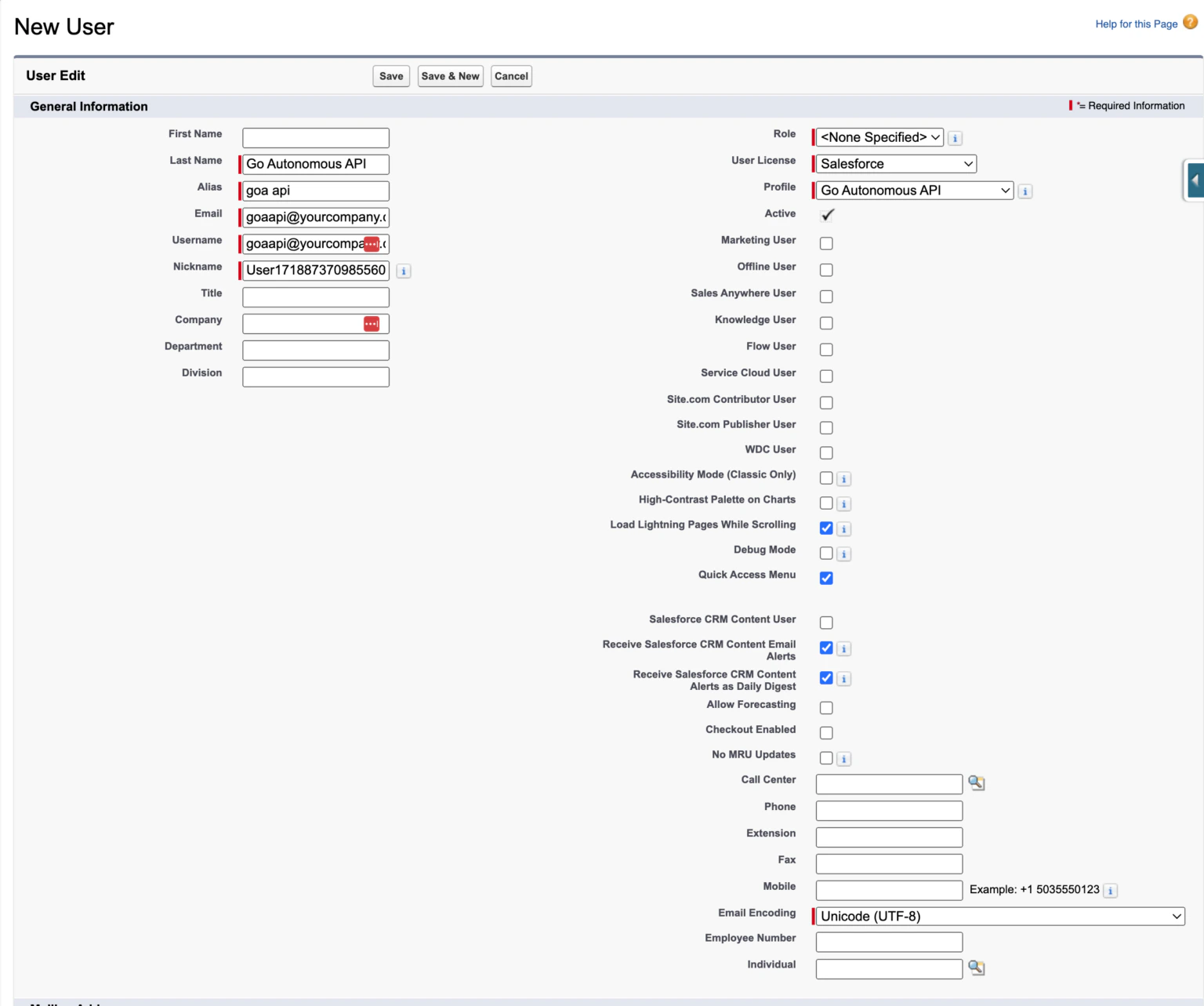
 From the Profiles page, navigate to **Users > Users** in the left pane and press **New User**.
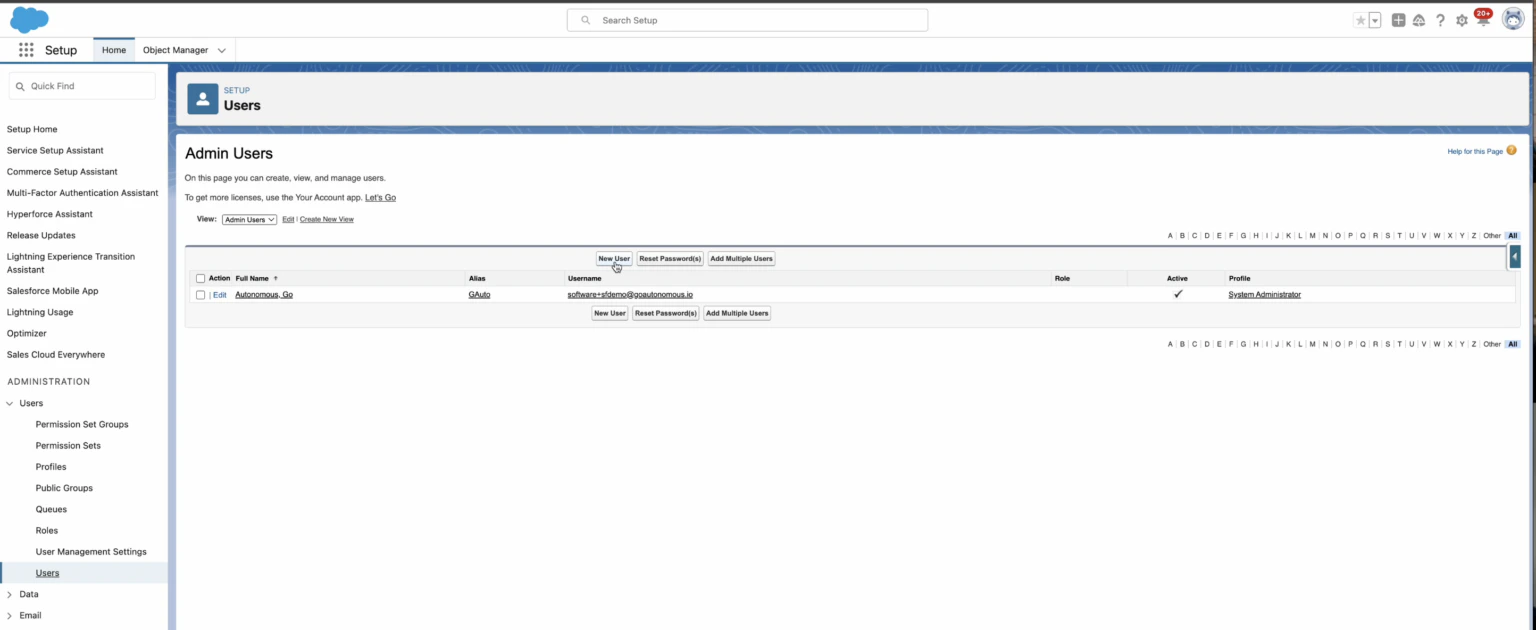 Set **User License** to **Salesforce** and **Profile** to **Go Autonomous API**. Fill in the required fields: Last Name, Alias, Email, Username, and Nickname. Set the Locale and Language fields to match your primary location, then save.
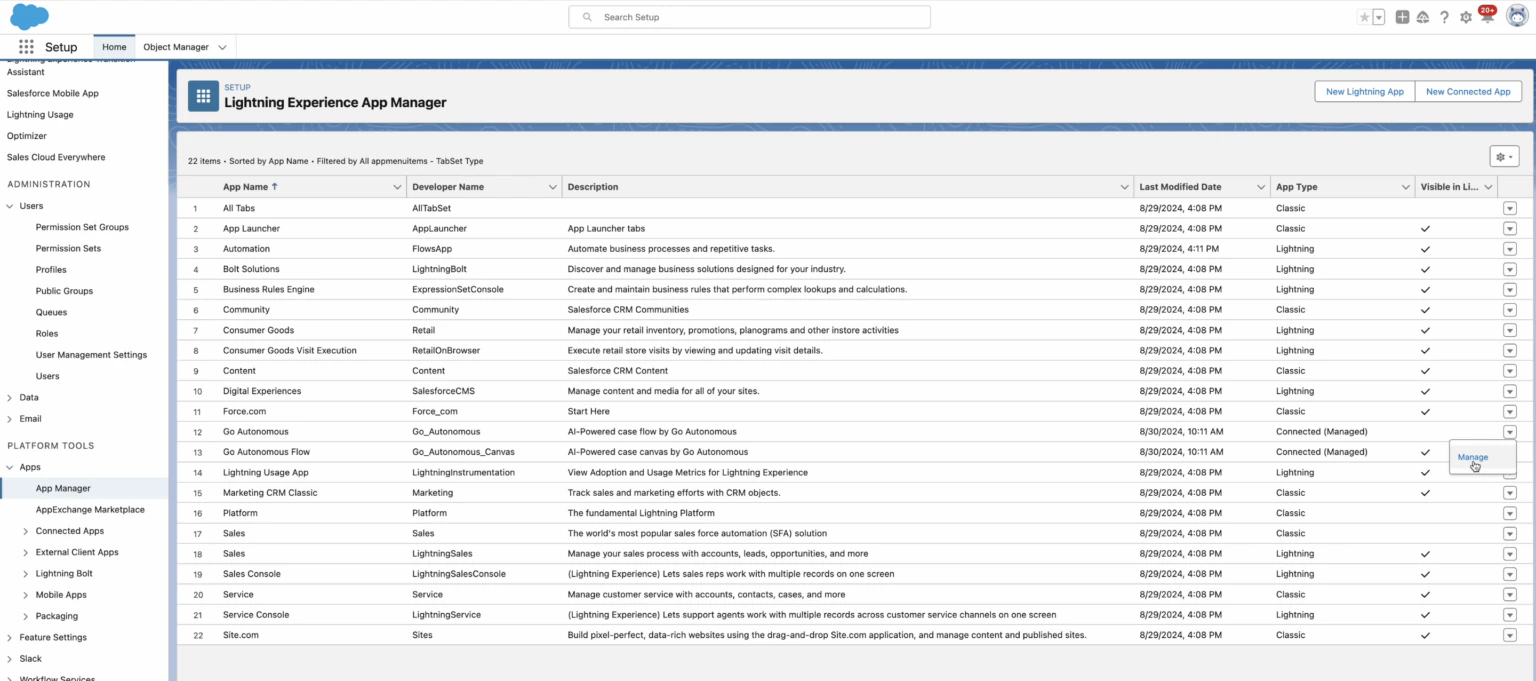
 Navigate to **Platform Tools > Apps > App Manager**. Find the Go Autonomous application, click the down arrow at the far right of the row, and press **Manage**.
 Press **Edit Policies**. Under the **Client Credentials Flow** section, click the magnify glass beside the **Run As** field, select **Go Autonomous API** from the pop-up, then press **Save**.
***
## Set up the Salesforce page layout
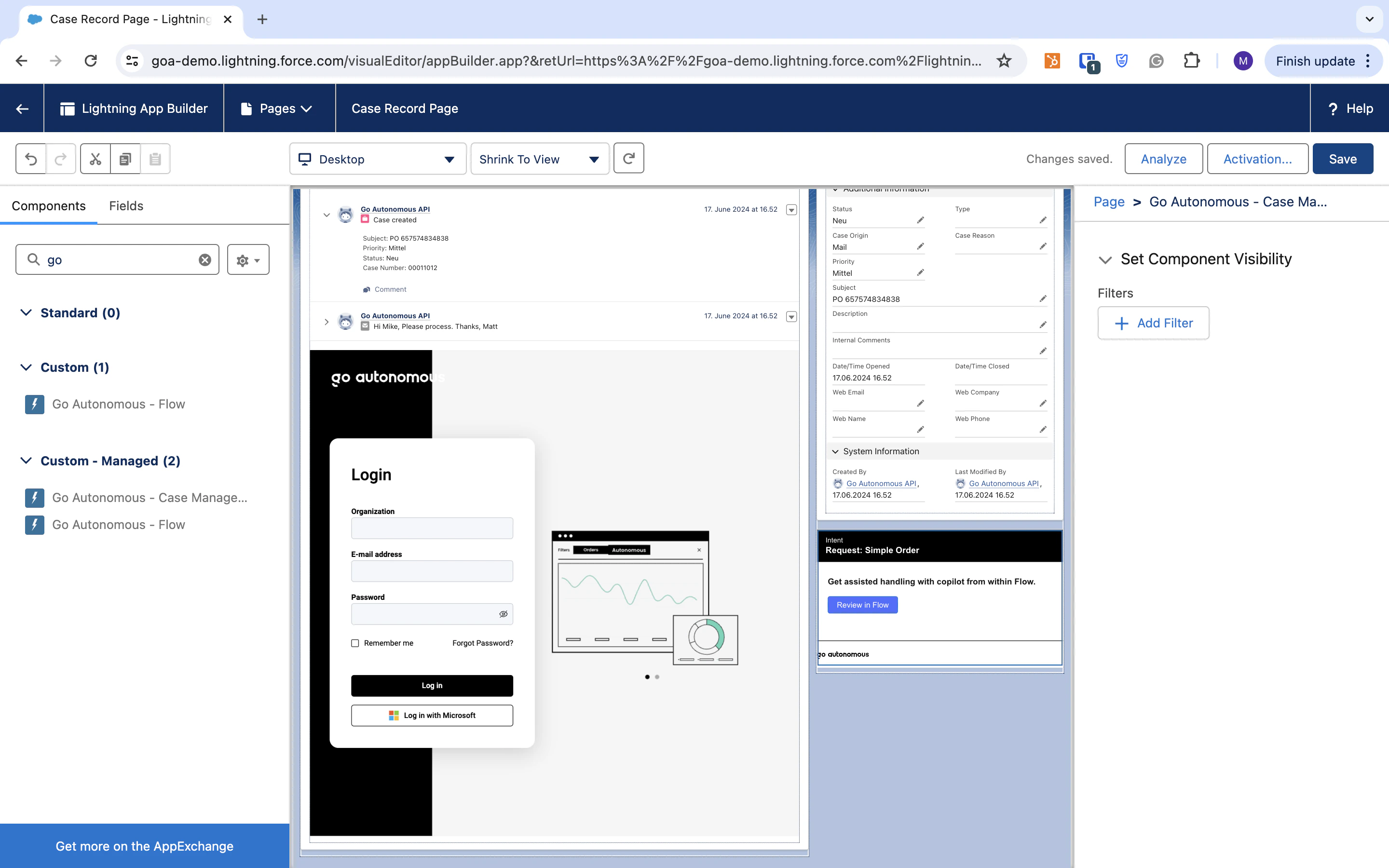
Log in to Salesforce and navigate to the **page layout settings** for Cases.
Press **Edit Policies**. Under the **Client Credentials Flow** section, click the magnify glass beside the **Run As** field, select **Go Autonomous API** from the pop-up, then press **Save**.
***
## Set up the Salesforce page layout
Log in to Salesforce and navigate to the **page layout settings** for Cases.
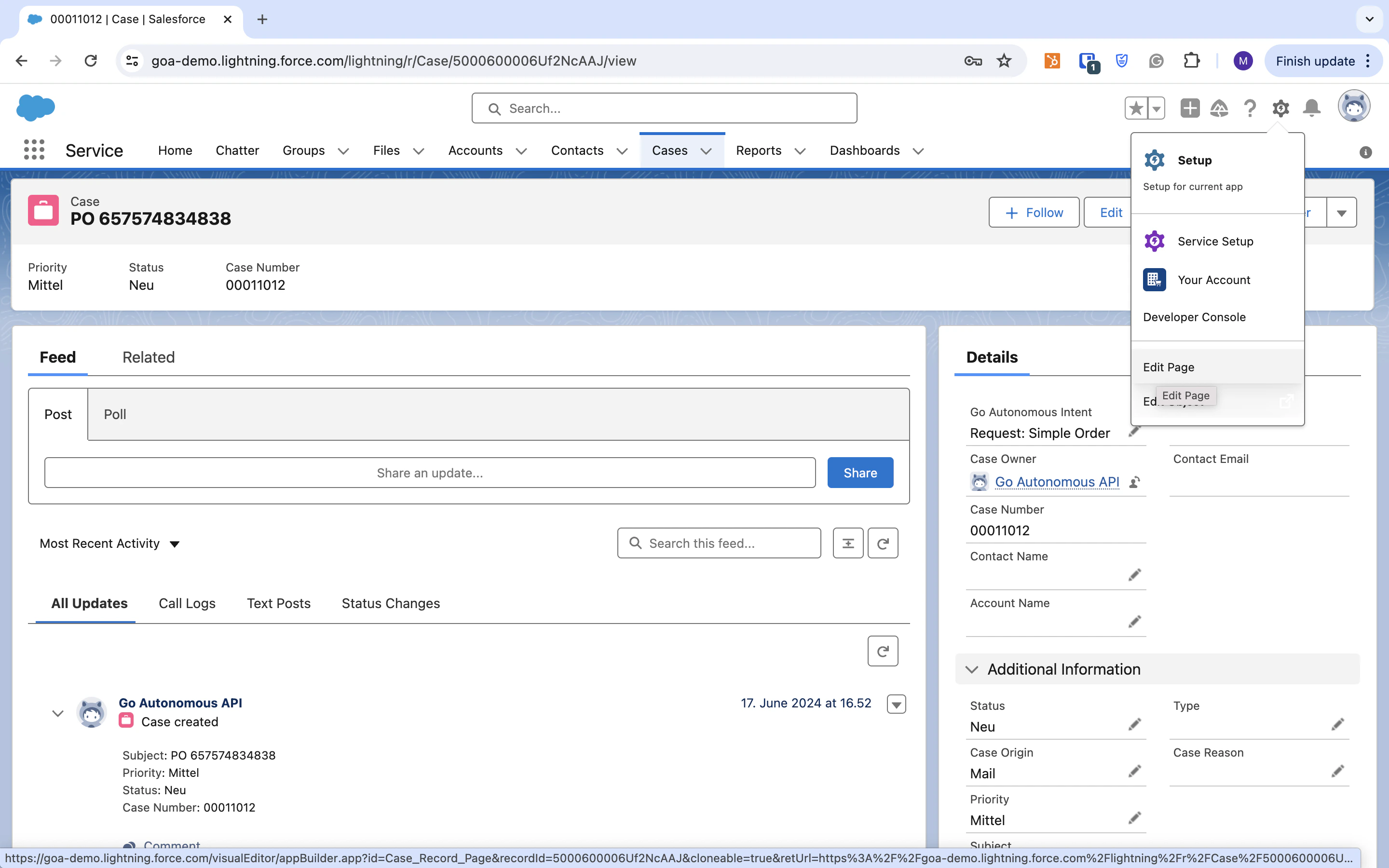
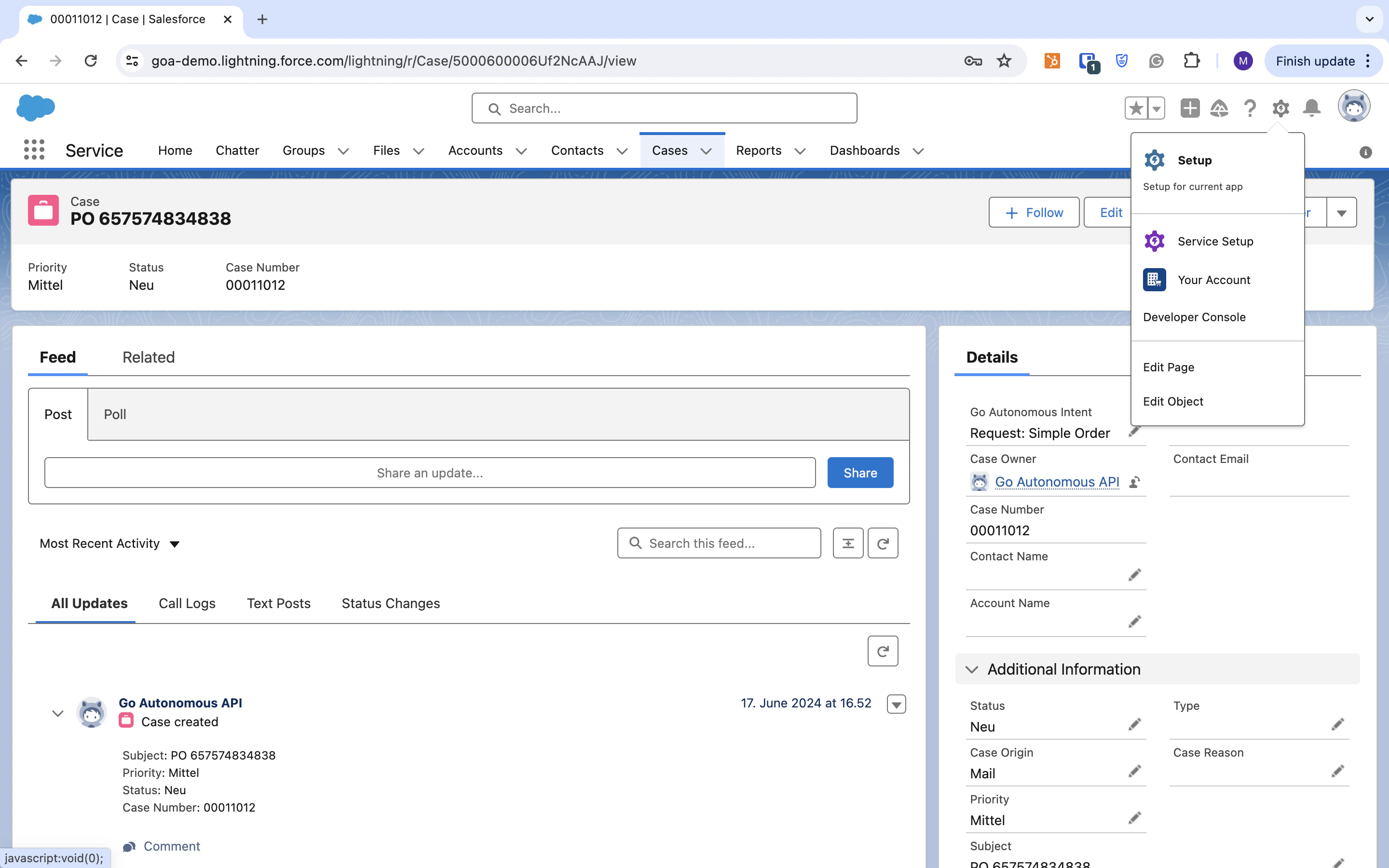 Click **Edit** to open the layout editor.
 In the left sidebar, search for **Go Autonomous**.
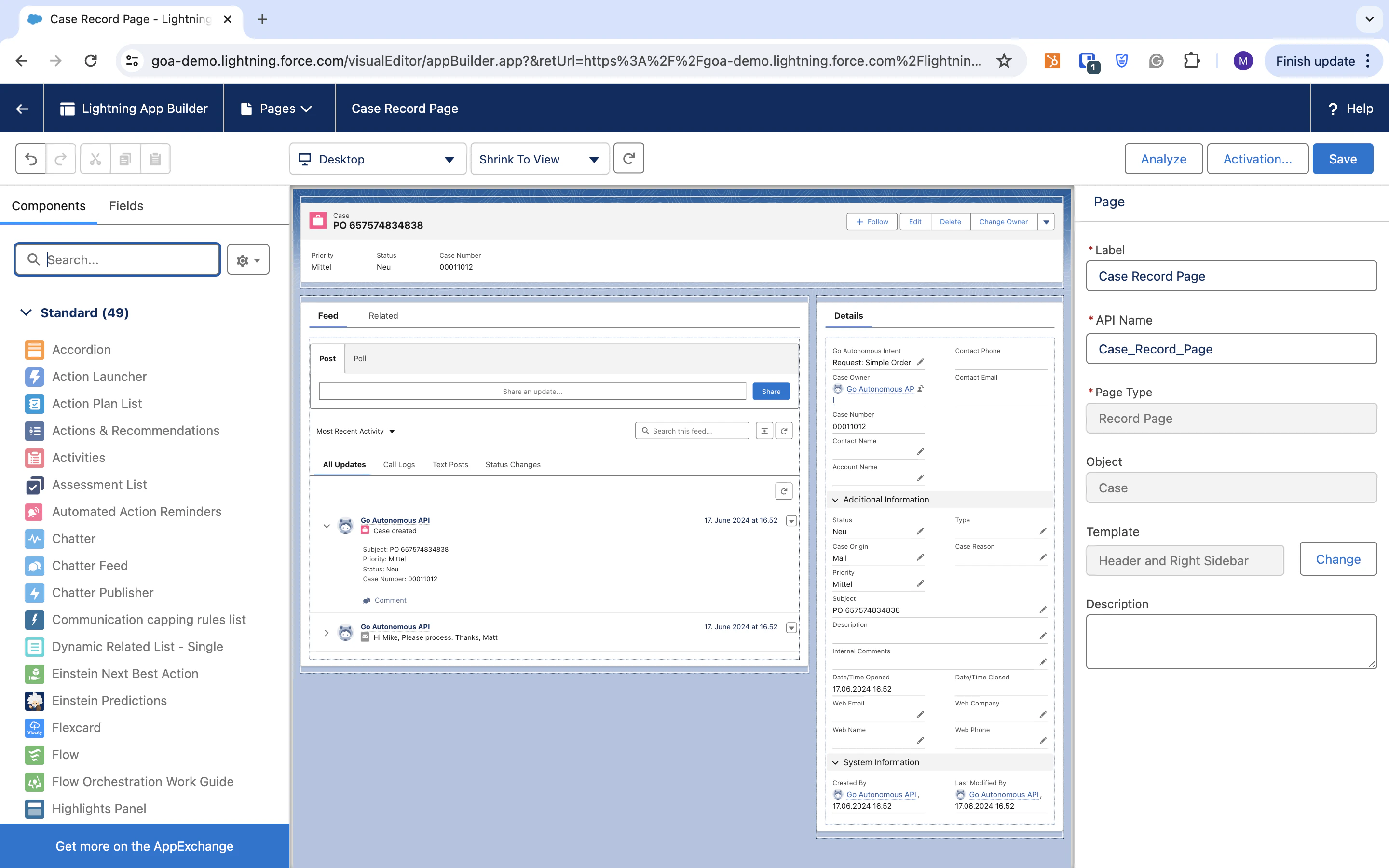 You'll see **Go Autonomous – Flow** and **Go Autonomous – Case Management** listed under **Custom – Managed**.
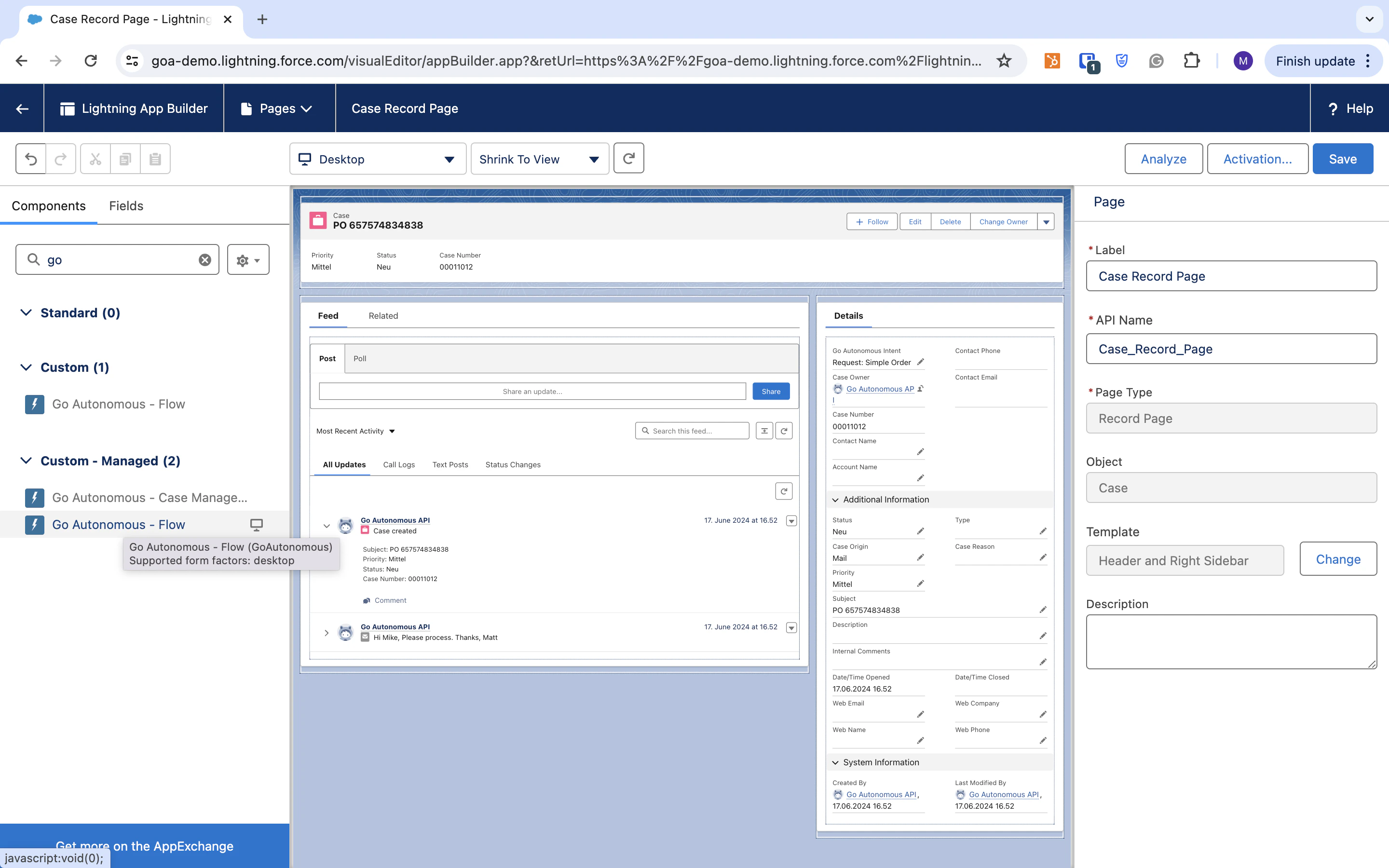 Drag **Go Autonomous – Flow** to the left side of the case layout.
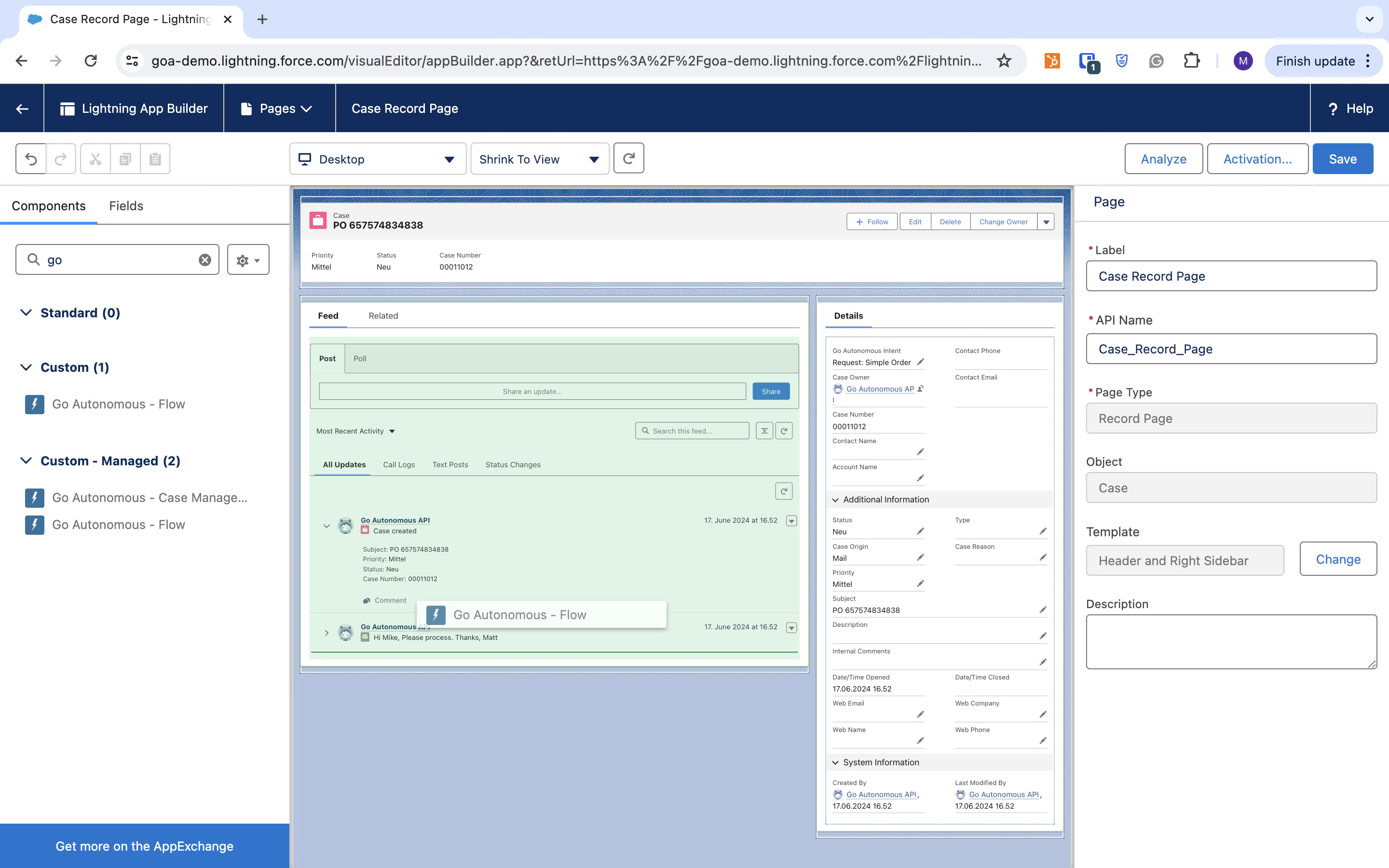 Drag **Go Autonomous – Case Management** to the right side of the layout.
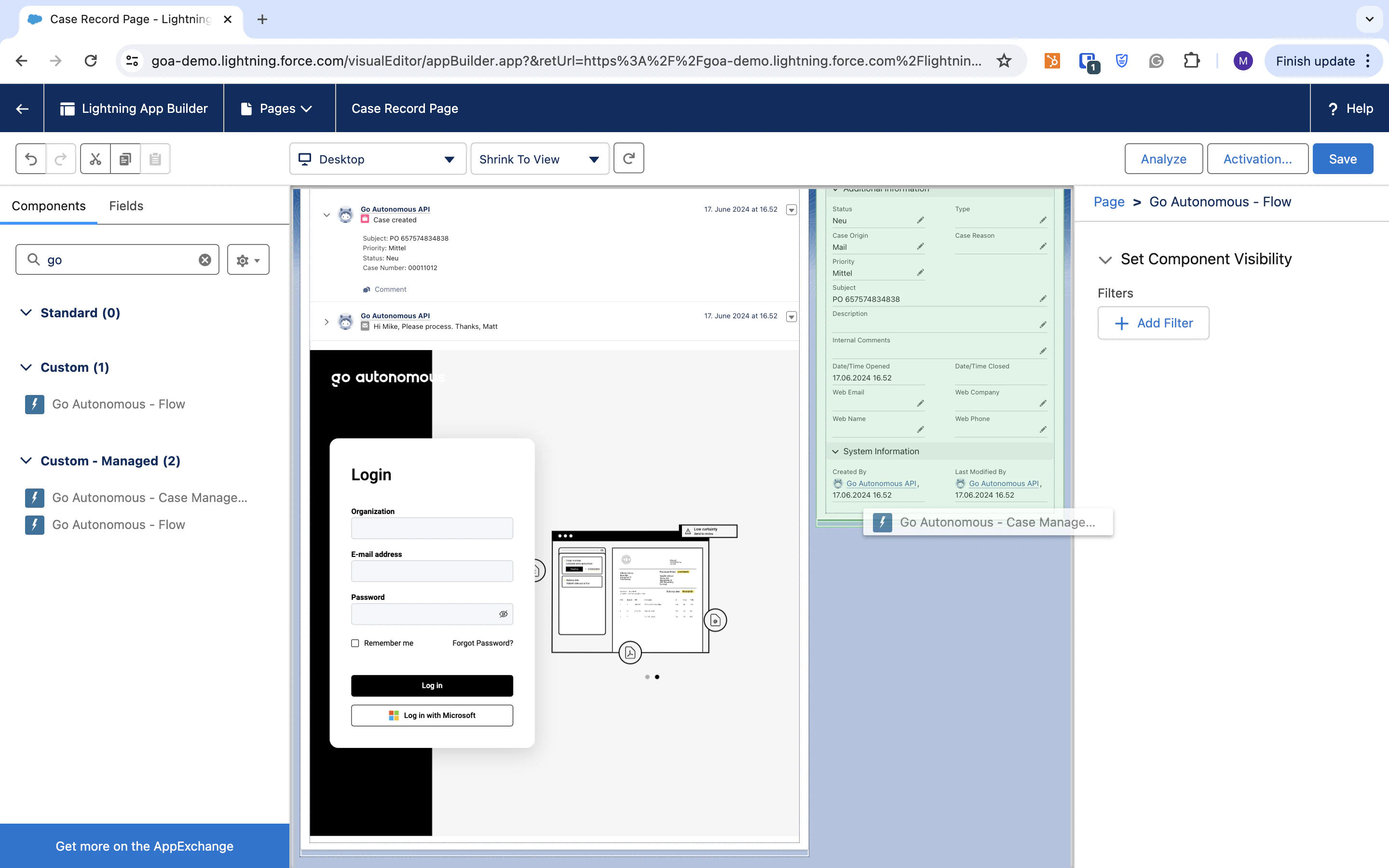 Click **Save**. Close the window when you see the **Changes saved** confirmation.
 ***
## Configure the connector in Go Autonomous
Log in to the Go Autonomous platform and navigate to **Administration > Company Settings > Connectors**.
Find the **Salesforce** connector in the **Available Connectors** section. Give your connection a clear name (e.g., "Main Salesforce Org"), select either **Case Creation** or **Case Enrichment** depending on your desired functionality, and enter the custom domain URL for your Salesforce organisation.
Once saved, your Salesforce connection will appear under **Active Connections**. You're now ready to use the integration.
***
## Configure the connector in Go Autonomous
Log in to the Go Autonomous platform and navigate to **Administration > Company Settings > Connectors**.
Find the **Salesforce** connector in the **Available Connectors** section. Give your connection a clear name (e.g., "Main Salesforce Org"), select either **Case Creation** or **Case Enrichment** depending on your desired functionality, and enter the custom domain URL for your Salesforce organisation.
Once saved, your Salesforce connection will appear under **Active Connections**. You're now ready to use the integration.