> ## Documentation Index
> Fetch the complete documentation index at: https://knowledge.goautonomous.io/llms.txt
> Use this file to discover all available pages before exploring further.

# Administration overview

> Configure integrations, manage settings, and control how Go Autonomous works for your organization.

<div style={{background: 'linear-gradient(135deg, #2F2F33 0%, #4C6FFF 100%)', borderRadius: '12px', padding: '32px 36px', marginBottom: '32px'}}>
  <div style={{display: 'flex', alignItems: 'center', gap: '8px', marginBottom: '10px'}}>
    <div style={{width: '28px', height: '14px', borderRadius: '7px', background: 'rgba(255,255,255,0.85)', position: 'relative'}}>
      <div style={{width: '10px', height: '10px', borderRadius: '50%', background: '#4C6FFF', position: 'absolute', top: '2px', right: '2px'}} />
    </div>

    <div style={{width: '28px', height: '14px', borderRadius: '7px', background: 'rgba(255,255,255,0.25)', position: 'relative'}}>
      <div style={{width: '10px', height: '10px', borderRadius: '50%', background: 'rgba(255,255,255,0.7)', position: 'absolute', top: '2px', left: '2px'}} />
    </div>
  </div>

  <h2 style={{color: '#fff', fontSize: '22px', fontWeight: '700', margin: '0 0 8px', letterSpacing: '-0.3px'}}>Administration</h2>
  <p style={{color: 'rgba(255,255,255,0.8)', fontSize: '14px', lineHeight: '1.6', margin: 0}}>Configure integrations, manage settings, and control how Go Autonomous works for your organisation.</p>
</div>

## Overview

The Administration section is where you configure and manage everything behind the scenes — integrations with external systems, field configurations, product catalogs, areas, automation rules, and organization-wide settings.

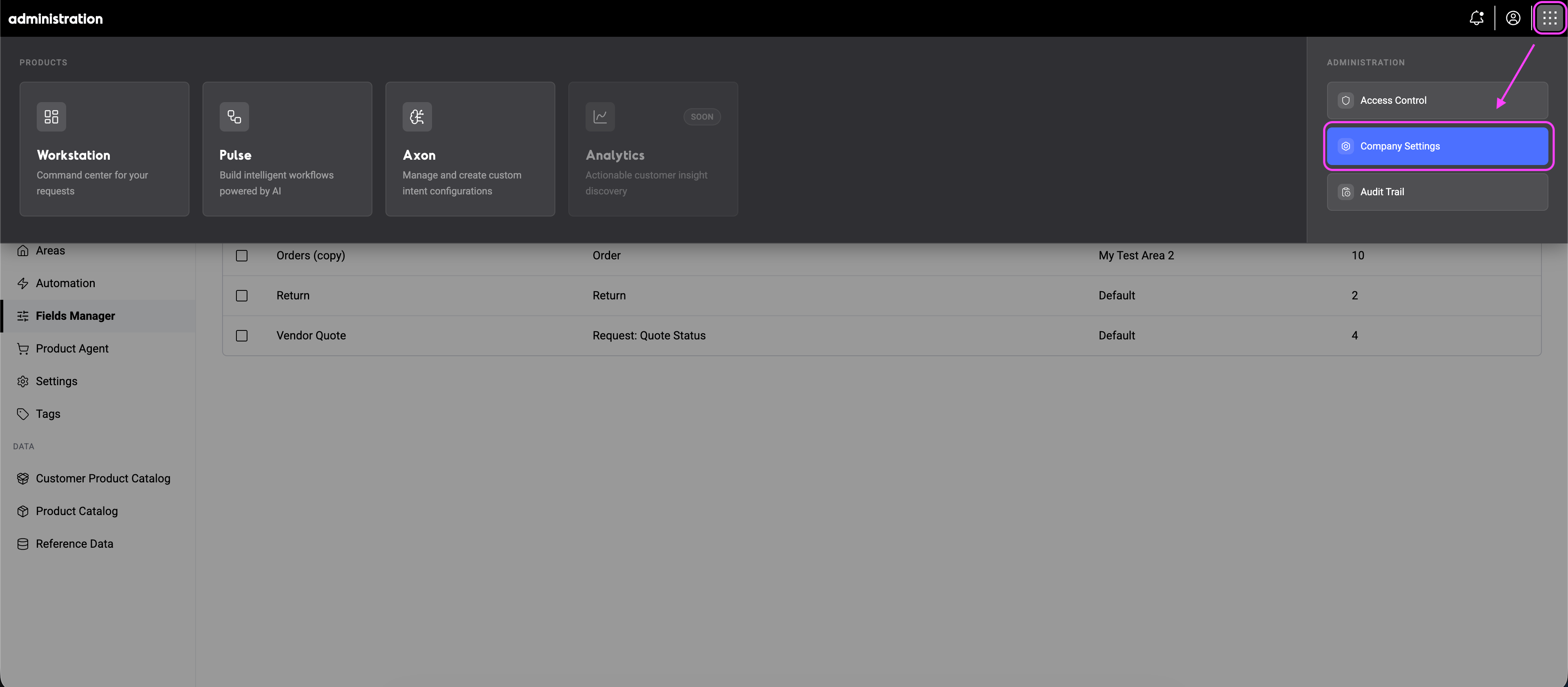
Administration is accessible via **Company Settings** at the top of the page.

<Frame>
  <img src="https://mintcdn.com/goautonomous/uwEP8jwRmURSSKr4/images/How-to-get-to-company-settings.png?fit=max&auto=format&n=uwEP8jwRmURSSKr4&q=85&s=0f4440285923c8dec1efef7c17ed488d" alt="How To Get To Company Settings" width="3840" height="1682" data-path="images/How-to-get-to-company-settings.png" />
</Frame>

## Company Settings

Company Settings contains everything related to how Go Autonomous processes and connects your data. It's organized into three sections:

### Integrations

Set up connections to external systems and manage authentication.

<CardGroup cols={2}>
  <Card title="Authenticators" icon="key" href="/knowledge-base/administration/authenticators">
    Create and manage authentication credentials for third-party integrations.
  </Card>

  <Card title="Connectors" icon="plug" href="/knowledge-base/administration/connectors">
    Connect Go Autonomous to your ERP, CRM, and other business systems.
  </Card>

  <Card title="Notifications" icon="bell" href="/knowledge-base/administration/notifications">
    In-app notifications for assignments, mentions, and updates.
  </Card>

  <Card title="Send Emails" icon="envelope" href="/knowledge-base/administration/email-sending">
    Configure outbound email sending for order confirmations and communications.
  </Card>

  <Card title="Inbox Management" icon="inbox" href="/knowledge-base/administration/inbox-management">
    Configure email inboxes, folders, and routing rules.
  </Card>
</CardGroup>

### Configurations

Define how the platform processes and organizes data.

<CardGroup cols={2}>
  <Card title="Areas" icon="map" href="/knowledge-base/administration/areas">
    Segment your organization into areas for different teams, regions, or business units.
  </Card>

  <Card title="Automation" icon="bolt" href="/knowledge-base/administration/automation">
    Control which requests are processed automatically vs. queued for manual review.
  </Card>

  <Card title="Field Manager" icon="table-columns" href="/knowledge-base/administration/fields-manager">
    Configure which fields appear in Flow and how data is extracted and displayed.
  </Card>

  <Card title="Keyword Tags" icon="tag" href="/knowledge-base/administration/tags">
    Create keyword tags to automatically label and organize requests.
  </Card>

  <Card title="API Keys" icon="key-skeleton" href="/knowledge-base/administration/api-keys">
    Create and manage API keys for programmatic access.
  </Card>

  <Card title="Change Logs" icon="scroll" href="/knowledge-base/administration/audit-logs">
    Track and review all actions taken in your organization.
  </Card>
</CardGroup>

### Data

Manage the reference data and product catalogs that power extraction and matching.

<CardGroup cols={2}>
  <Card title="Product Catalog" icon="database" href="/knowledge-base/administration/product-catalogs">
    Upload and maintain your product catalog to power extraction and auto-matching in Flow.
  </Card>

  <Card title="Customer product numbers" icon="barcode" href="/knowledge-base/administration/customer-product-numbers">
    Map customer-specific product codes to your internal catalog.
  </Card>

  <Card title="Reference data" icon="table-list" href="/knowledge-base/administration/reference-data">
    Upload and manage reference data sets for extraction and matching.
  </Card>
</CardGroup>

## What's next

Pick the area that matches what you need to set up or configure. If you're just getting started, begin with [Connectors](/knowledge-base/administration/connectors) to link your external systems, then move to [Fields Manager](/knowledge-base/administration/fields-manager) to configure how data is displayed in Flow.