> ## Documentation Index
> Fetch the complete documentation index at: https://knowledge.goautonomous.io/llms.txt
> Use this file to discover all available pages before exploring further.
# The Flow toolbar
> A quick reference for every button in the Flow toolbar when reviewing a request.
## Overview
When you open a request in Flow, a toolbar appears at the side and top of the interface. It gives you access to document tools, AI assistance, collaboration features, and request management — all without leaving the current screen.
The toolbar is split into two areas:
* **Left/side toolbar** — document interaction and viewing tools.
* **Right toolbar** — request-level actions and panels.
***
## Left toolbar
### Copilot
Opens the AI-powered Copilot panel, which guides you through the extraction review step by step — surfacing each extracted field as a question, flagging warnings, and supporting address verification.
[Read more about Copilot →](/knowledge-base/flow/copilot)
 ***
### Simulation
Runs a simulation of how the AI would process the current request. Use this to test extraction logic and verify how Go Autonomous would handle the document before confirming.
***
### Simulation
Runs a simulation of how the AI would process the current request. Use this to test extraction logic and verify how Go Autonomous would handle the document before confirming.
 ***
### Collaboration
Opens the collaboration panel, where you can pin discussion threads to specific parts of the document. Use it to ask questions, flag exceptions, or request clarifications — with @mentions, file attachments, and real-time updates.
[Read more about Collaborations →](/knowledge-base/flow/collaborations)
***
### Collaboration
Opens the collaboration panel, where you can pin discussion threads to specific parts of the document. Use it to ask questions, flag exceptions, or request clarifications — with @mentions, file attachments, and real-time updates.
[Read more about Collaborations →](/knowledge-base/flow/collaborations)
 ***
### Table Creation Mode
**Step 1 of the Savvy Tables workflow.** Click and drag on the document to draw table boundaries over unstructured content. Save your tables with **Ctrl+S** or the Save button, with the option to apply the structure to multiple pages.
[Read more about Savvy Tables →](/knowledge-base/flow/savvy-tables)
***
### Table Creation Mode
**Step 1 of the Savvy Tables workflow.** Click and drag on the document to draw table boundaries over unstructured content. Save your tables with **Ctrl+S** or the Save button, with the option to apply the structure to multiple pages.
[Read more about Savvy Tables →](/knowledge-base/flow/savvy-tables)
 ***
### Table Edition Mode
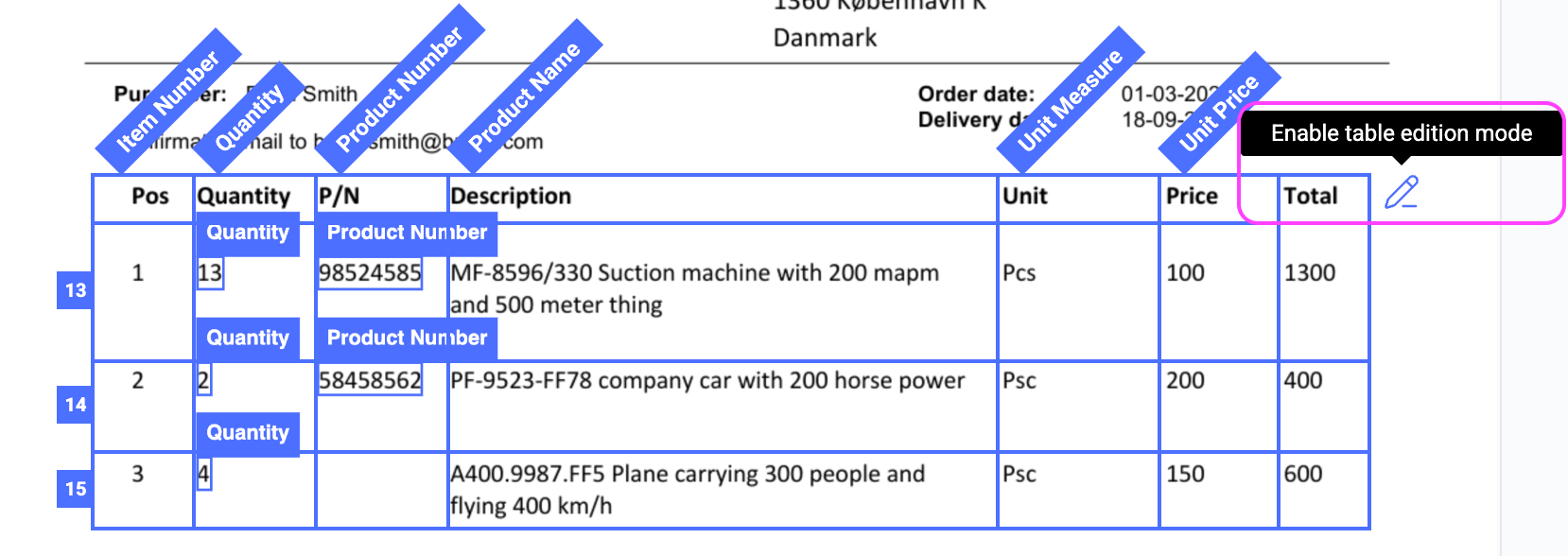
**Step 2 of the Savvy Tables workflow.** Once tables have been drawn, switch to Table Edition Mode to adjust them — add or remove rows and columns, resize dividers, and fine-tune the structure.
[Read more about Savvy Tables →](https://knowledge.goautonomous.io/knowledge-base/flow/savvy-tables)
***
### Table Edition Mode
**Step 2 of the Savvy Tables workflow.** Once tables have been drawn, switch to Table Edition Mode to adjust them — add or remove rows and columns, resize dividers, and fine-tune the structure.
[Read more about Savvy Tables →](https://knowledge.goautonomous.io/knowledge-base/flow/savvy-tables)
 ***
### Zoom In / Zoom Out
Increase or decrease the document zoom level for better readability. Useful when reviewing dense tables or small text.
***
### Zoom In / Zoom Out
Increase or decrease the document zoom level for better readability. Useful when reviewing dense tables or small text.
 ***
### Pan Mode
Switch the cursor to a pan tool, letting you click and drag to scroll around the document freely rather than using the scrollbar.
***
### Pan Mode
Switch the cursor to a pan tool, letting you click and drag to scroll around the document freely rather than using the scrollbar.
 ***
### Fit to Screen
Resets the zoom and position so the full document fits within the visible area. Handy after zooming in on a specific section.
***
### Fit to Screen
Resets the zoom and position so the full document fits within the visible area. Handy after zooming in on a specific section.
 ***
### Rotate
Rotates the document view. Use this when an attachment arrives in the wrong orientation.
***
### Rotate
Rotates the document view. Use this when an attachment arrives in the wrong orientation.
 ***
### Attachments
Opens a dropdown listing all attachments on the request. Click any attachment to switch to it in the document viewer.
***
### Attachments
Opens a dropdown listing all attachments on the request. Click any attachment to switch to it in the document viewer.
 ***
### Download
Downloads the currently viewed document attachment to your local machine.
***
### Download
Downloads the currently viewed document attachment to your local machine.
 ***
## Right toolbar
### Product Cart
Opens the product cart panel, where all extracted line items are listed. Review, edit, and manage product lines here before confirming the request.
[Read more about the Product Cart →](/knowledge-base/flow/product-cart)
***
### History
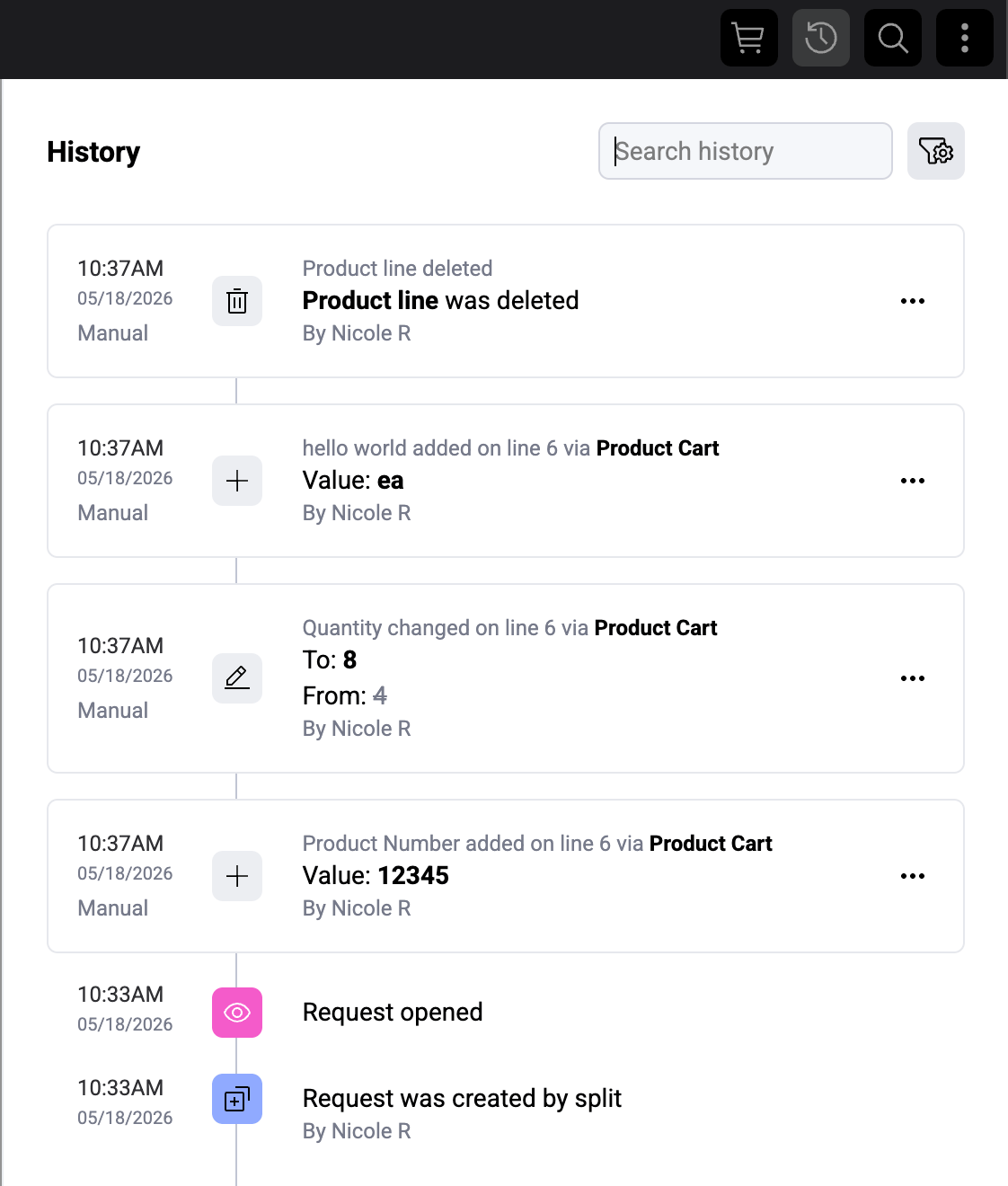
Opens the full audit trail for the request — every change, who made it, and when. You can also revert individual changes or restore deleted lines from here.
[Read more about History →](/knowledge-base/flow/history)
***
## Right toolbar
### Product Cart
Opens the product cart panel, where all extracted line items are listed. Review, edit, and manage product lines here before confirming the request.
[Read more about the Product Cart →](/knowledge-base/flow/product-cart)
***
### History
Opens the full audit trail for the request — every change, who made it, and when. You can also revert individual changes or restore deleted lines from here.
[Read more about History →](/knowledge-base/flow/history)
 ***
### Search
Opens an in-document search bar (**Ctrl+F**) so you can find specific text within the current attachment quickly.
***
### Flow Menu (⋮)
The overflow menu contains request-level actions:
* **Activate / Deactivate Copilot** — toggle AI Copilot guidance on or off for this request.
* **Reprocess Request** — re-run AI extraction on the current document. Use this if the original processing missed something or if you've made document changes.
* **View Settings** — open display and configuration settings for the current Flow view.
***
## What's next
* [Review and confirm orders](/knowledge-base/flow/review-and-confirm) for the complete request workflow.
* [Use Savvy Tables](/knowledge-base/flow/savvy-tables) to extract data from unstructured documents.
* [Work with the product cart](/knowledge-base/flow/product-cart) to manage extracted line items.
***
### Search
Opens an in-document search bar (**Ctrl+F**) so you can find specific text within the current attachment quickly.
***
### Flow Menu (⋮)
The overflow menu contains request-level actions:
* **Activate / Deactivate Copilot** — toggle AI Copilot guidance on or off for this request.
* **Reprocess Request** — re-run AI extraction on the current document. Use this if the original processing missed something or if you've made document changes.
* **View Settings** — open display and configuration settings for the current Flow view.
***
## What's next
* [Review and confirm orders](/knowledge-base/flow/review-and-confirm) for the complete request workflow.
* [Use Savvy Tables](/knowledge-base/flow/savvy-tables) to extract data from unstructured documents.
* [Work with the product cart](/knowledge-base/flow/product-cart) to manage extracted line items.