

Workstation
Your command center — a single view of every incoming customer request, ready to filter, assign, and action.
Overview
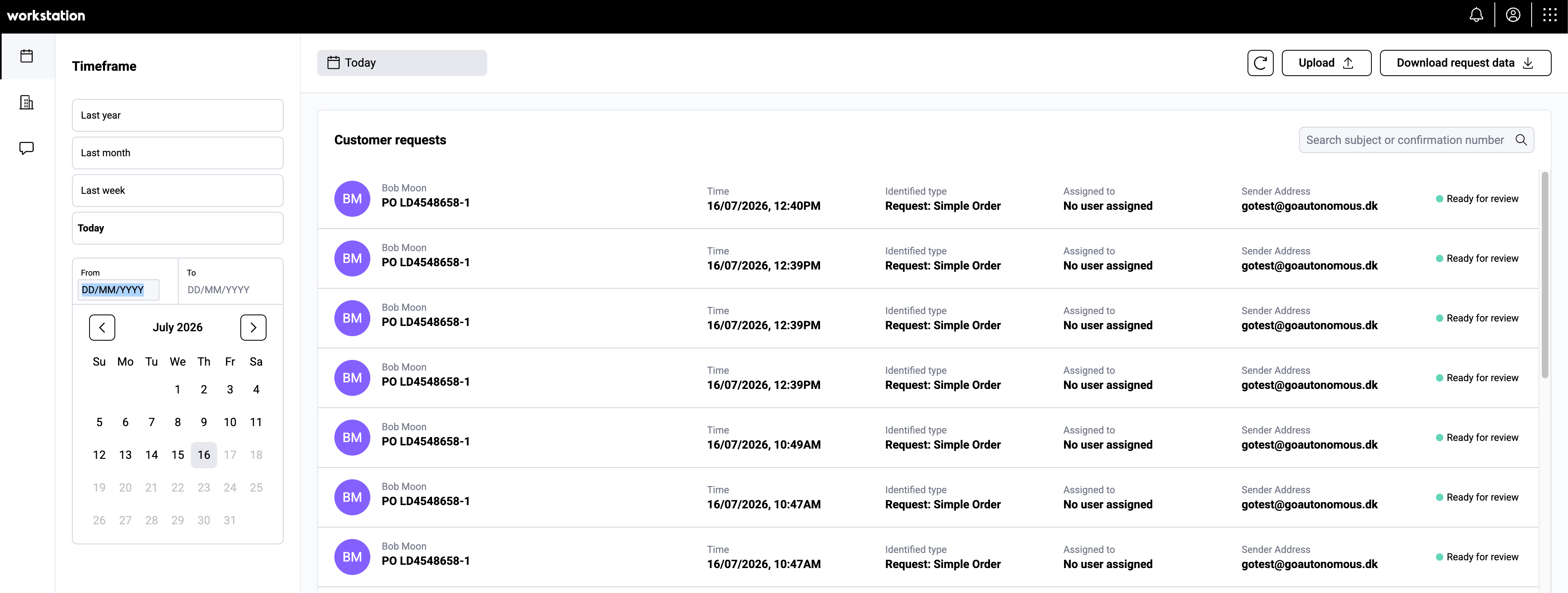
Workstation is the first thing you see when you log into Go Autonomous. It’s your command center — a single view of every incoming customer request, whether it’s an order, a quote, an adjustment, or something else entirely. From Workstation, you can see at a glance who sent a request, what type it is, who it’s assigned to, and whether it’s ready for review. Think of it as your team’s shared inbox, purpose-built for commercial operations.What you’ll see
The main Workstation view displays a table of Customer requests with the following information for each:- Sender — the name and email address of the person who sent the request.
- Subject — the email subject or document name.
- Time — when the request was received.
- Identified type — the intent Go Autonomous detected (e.g., Request: Simple Order, Request: Product Quote, Request: Order Adjustment).
- Assigned to — which team member is handling the request.
- Status — the current processing state (e.g., Ready for review).

Key actions
- Search — find specific requests by subject or confirmation number using the search bar.
- Filter by date — use the date picker to narrow results to a specific time period (e.g., last month, custom range).
- Upload — manually upload documents or files to create new requests.
- Download request data — export request data for reporting or external processing.
- Open a request — click any request row to open it in Flow, where you review and process it.
When you click a request in Workstation, it opens in Flow in a new tab. This means you can have multiple requests open at once.
Sidebar navigation
The left sidebar in Workstation gives you quick access to different views:- Requests view — the default table of all customer requests.
- Dashboard view — a visual summary of request volume, types, and processing metrics.
- Messages view — review communications related to your requests.