

Flow
The request processing view where you review AI-extracted data, edit orders, and confirm requests to your connected systems.
Overview
Flow is where the real work happens. When you open a request from Workstation, it opens in Flow — a purpose-built interface for reviewing, correcting, and confirming the data that Go Autonomous extracted from customer communications. Flow gives you everything you need in one view: the original email, the extracted product cart, account details, and tools for editing, commenting, and confirming.The Flow interface
Flow is divided into three main panels:Left panel — original communication
This panel shows the original email or document. You can read the full conversation, see attachments, and reference the source material while reviewing the extracted data. For Excel attachments, Flow displays them as interactive spreadsheets you can scroll through.Center panel — product cart
The product cart shows all the line items Go Autonomous extracted from the request. Each row includes fields like product number, product name, quantity, unit price, total price, unit of measure, and category. You can edit any field directly in the cart — see Work with the product cart for details.Right panel — summary
The summary panel displays extracted account and contact details: account name, customer status, contact name, and contact email. These fields are editable and help ensure the right customer information is attached to the order.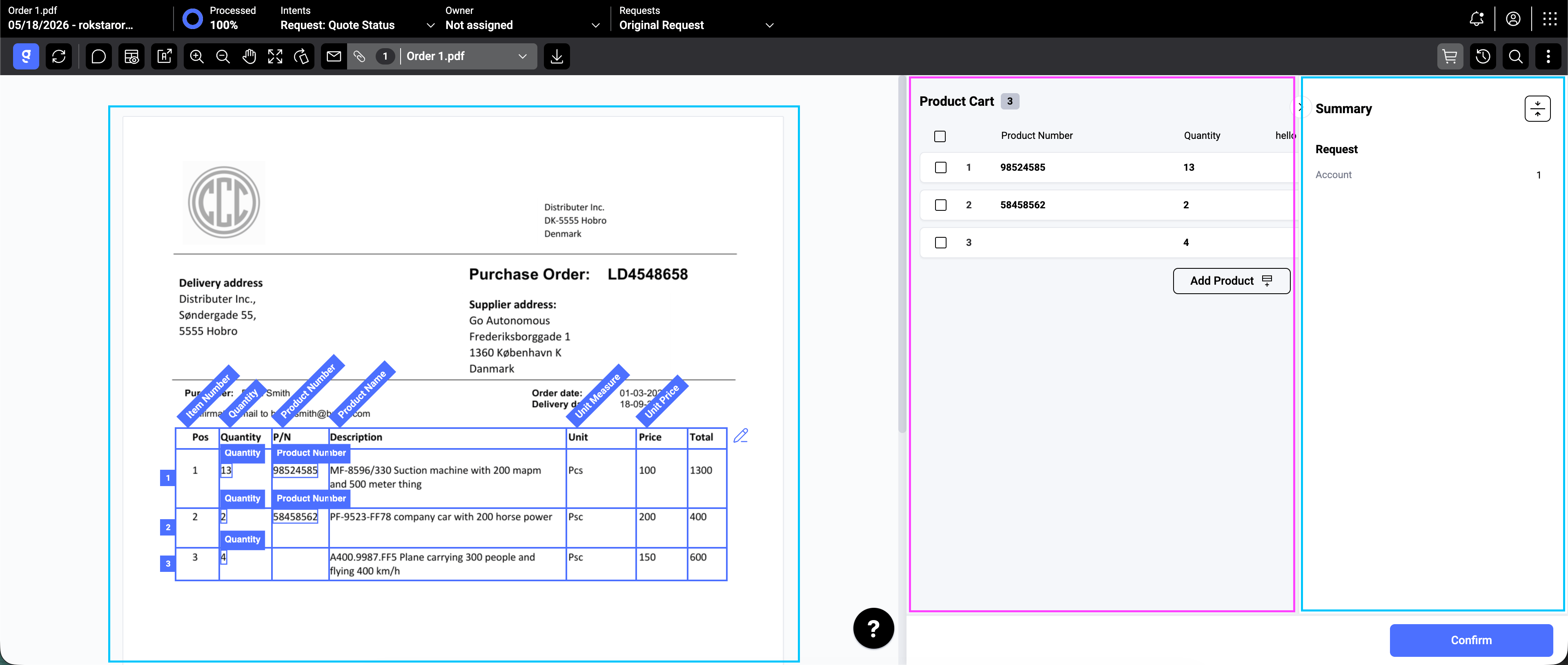
Top bar
The top bar displays key metadata about the request:- Subject and date — the email subject and when it was received.
- Processed — a percentage showing how much of the extraction is complete.
- Intents — the classified request type (e.g., Request: Product Quote).
- Owner — the team member assigned to this request. Click to reassign.
- Requests — switch between the original request and any related requests.
Toolbar
The toolbar below the top bar gives you quick access to processing tools:- AI reprocess — re-run the AI extraction on the current request.
- Refresh — reload the latest data.
- Comments — add notes or collaborate with your team.
- Edit mode — toggle editing capabilities on the document view.
- Spreadsheet view — switch to spreadsheet display for supported attachments.
- Zoom controls — zoom in, zoom out, and pan across the document.
- Expand — expand the document view to full width.

Confirming a request
Once you’ve reviewed the extracted data and made any necessary corrections, click the Confirm button at the bottom-right corner to send the data to your connected system. The total price is displayed next to the button for a final check.What’s next
- Review and confirm orders
- Work with the product cart
- Use the AI Agent view to guide your review process
- Collaborate with your team using threads and comments
- Handle multiple orders in one request
- Split requests into multiple orders