

Overview
Areas let you segment your Go Autonomous environment into logical divisions — by team, region, business unit, or any grouping that makes sense for your organisation. Each area has its own field configurations, product catalogs, reference data, and autonomous mode settings. Every organisation starts with an Unassigned area (the system default) that holds all requests not assigned to a specific area.The Areas page
Navigate to Administration > Company Settings > Areas to manage your areas.
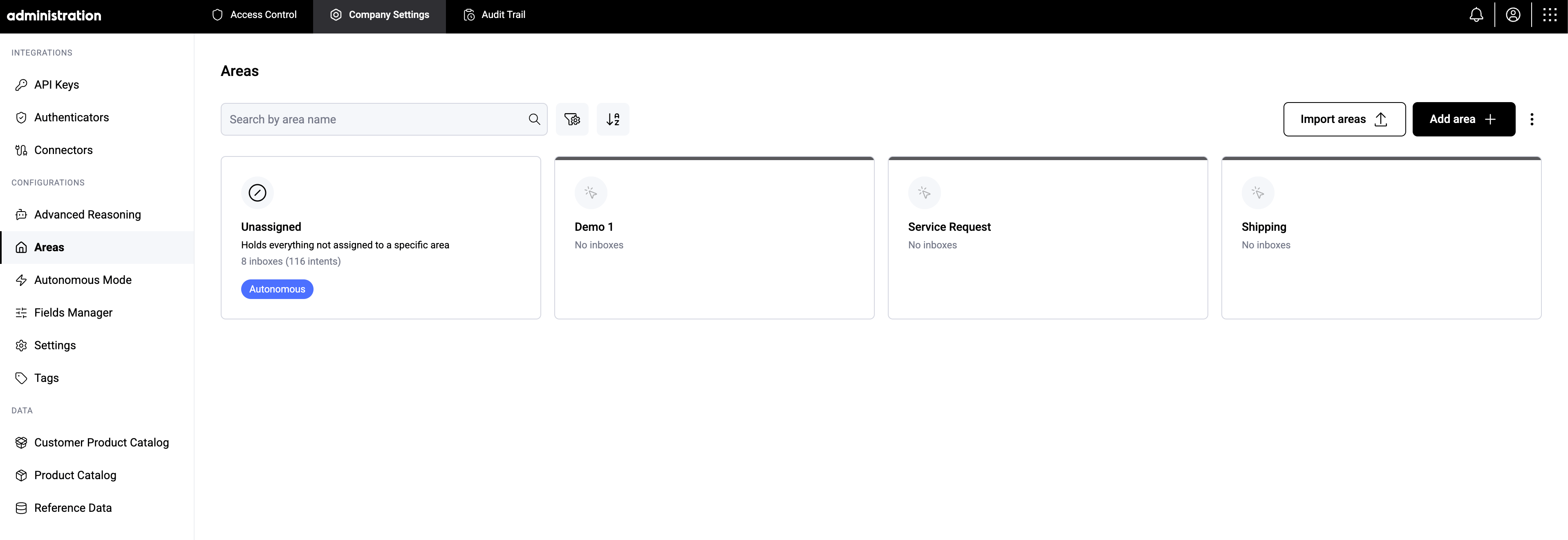
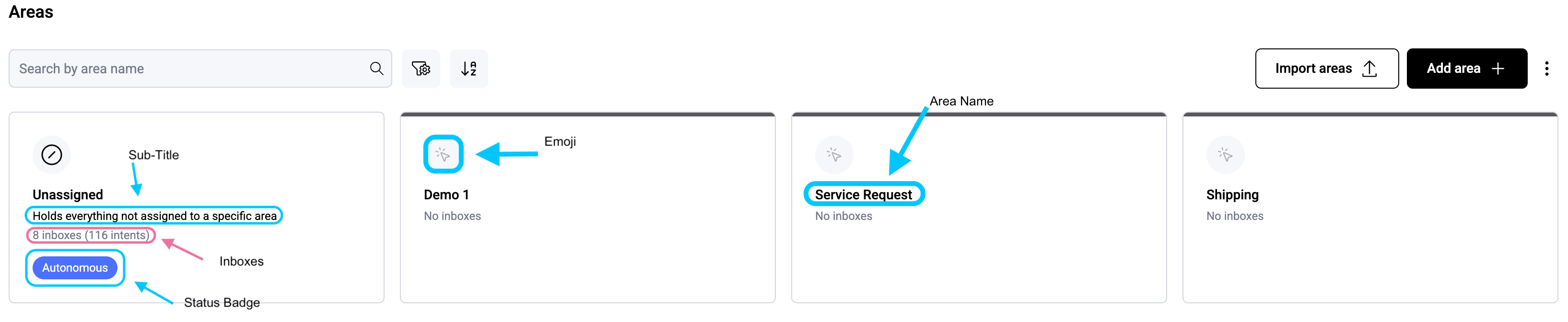
Areas are displayed as a grid of cards. Each card shows:
- Emoji — a customisable emoji you choose when creating the area.\
- Area name — the display name of the area.\
- Subtitle — an optional short description.\
- Inbox count — the number of inboxes and intents connected to the area (e.g. “3 inboxes (5 intents)”).\
- Status badge — shows Autonomous if the area has Autonomous Mode enabled, System Default if it is the Unassigned area, or no badge if it is a standard area without autonomous processing.
The blue indicator
A coloured bar runs along the top of each area card. When the bar is blue, the area has Autonomous Mode enabled — meaning Go Autonomous will automatically process and confirm matching requests without manual review. When the bar is dark, the area is in standard (manual review) mode.The Unassigned area
The Unassigned area appears first in the grid and cannot be deleted or renamed. It acts as a catch-all — any request that doesn’t match a specific area is automatically assigned here. This includes requests from inboxes that have no area explicitly assigned. It always shows a System Default badge instead of an Autonomous badge. This is also the area label you’ll see anywhere the system refers to “no specific area” — for example, in the Agentic Fields Center when creating a rule that isn’t scoped to any particular area, the area selector shows Unassigned rather than a generic “default” label.\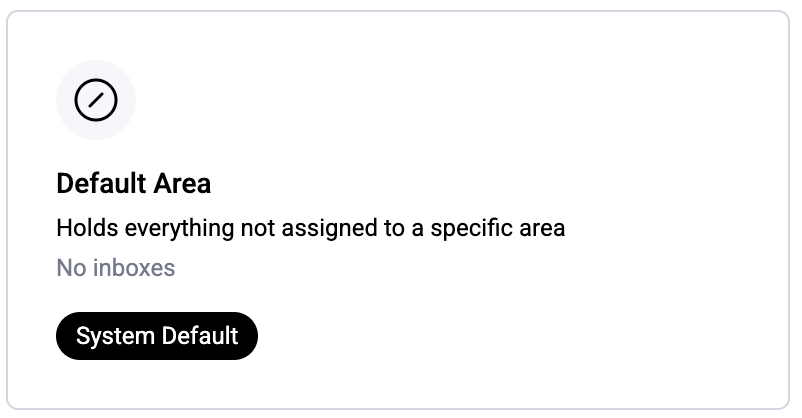
Filtering and sorting
Use the toolbar to search by area name, filter by connected inbox, or sort alphabetically.Bulk actions on selected areas
Select one or more area cards to reveal the selection action bar at the top of the page. The bar shows a live N selected count and gives you quick access to bulk actions:- Export areas — download the selected areas to a file (see Import and export areas).
- Delete — permanently delete the selected areas via the guided deletion flow.
- Clear — deselect all areas and dismiss the bar.
What you see in the selection bar depends on your permissions:
- Users with area restrictions see Export areas only.
- Users without area restrictions see both Export areas and Delete, subject to the Company Settings → Configurations permission.
Create a new area
1
Click Add area
Click the Add area button in the top-right corner.
2
Choose an emoji
Select an emoji to represent the area. Click the emoji button to open the emoji picker — you can search by name or browse by category. The emoji appears on the area card and helps your team quickly identify areas at a glance.
3
Enter a name and subtitle
Enter a name for the area. Names must be unique and cannot use reserved names (“default”, “default area”, or “unassigned”). Optionally add a subtitle to describe what the area covers.
4
Save
Click Save to create the area. It will appear in the grid and is immediately available to connect to inboxes and field configurations.
Area details
Click any area card to open the details drawer on the right. This gives you a full picture of what’s connected to the area:- Autonomous Mode — whether autonomous processing is on or off for this area, and a link to configure it.
- Connected Inboxes — all inboxes routing mail into this area, with their associated intents. Click View connectors to manage these connections.
- Field Configurations — all field configurations scoped to this area. Click View configurations to manage them.
- Product Catalog — whether this area uses the organisation’s default product catalog or an area-specific one.
- Customer Product Catalog — same as above, for customer product catalogs.
- Reference Data — all reference data entries scoped to this area, searchable by name.
Delete an area
To delete a single area, open its menu and select Delete. To delete several areas at once, select them in the grid and choose Delete in the selection action bar — you’ll get a short confirmation, then be taken into the same guided deletion flow.You can’t delete an area that’s still in use. If the area is connected to an inbox, a field configuration, or has area-specific reference data, a product catalog, or a customer product catalog attached, the delete is blocked and a pop-up lists what’s still connected.To delete it, first detach everything from the area:
- Inboxes — unassign the area from the inbox in the connector configuration.
- Field configurations — unassign the area from the configuration in the Field Manager.
- Reference data — remove or reassign the area-specific reference data entries.
- Product catalog — remove the area-specific product catalog so the area falls back to the default.
- Customer product catalog — same as above, for customer product catalogs.
Connecting areas to inboxes
Inboxes are connected to areas through the Connectors page, not directly from the Areas page. When setting up or editing an inbox in the Microsoft connector, you assign one or more areas to it. You can connect multiple areas to the same inbox. This is useful when a single email address receives requests that should be handled by different teams — for example, a shared order inbox where some orders go to a UK area and others to a US area. Set up connectors →Using multiple areas on the same inbox
When two or more areas are connected to the same inbox, Go Autonomous needs to determine which area a given request belongs to. If your integration has logic to resolve this automatically, no further setup is needed. If it doesn’t, you need to configure an Area field in each field configuration.Setting up the Area field
For every field configuration linked to areas that share an inbox:- Add an Area field to the configuration.
- Mark it as required — this prevents a request from being confirmed until the area is explicitly set.
- Make it the first field in the configuration so it’s the first thing a user sees when reviewing a request in Flow.
What happens in Flow
When a request comes in on a shared inbox and the area can’t be determined automatically:- Go Autonomous randomly assigns one of the connected areas as a starting point.
- The Agent view immediately prompts the user to confirm or correct the area selection.
- Once the user selects the correct area, any field settings that depend on the area (such as dependent field options or area-specific defaults) are automatically reset to match the selected area’s configuration.
Area-specific configurations
Once an area is set up, you can scope the following to it:- Field configurations — in the Field Manager, assign a configuration to a specific intent + area combination. This means different areas can show completely different fields for the same type of request.
- Autonomous Mode — enable and configure autonomous processing independently per area.
- Product catalogs and reference data — use area-specific catalogs instead of the organisation default, so each area sees only the products and data relevant to them.
- Pulse workflows — scope workflows to specific areas so they only trigger for matching requests.
Import and export areas
Export — select the areas you want in the grid, then click Export areas in the selection action bar to download them as a file. This is useful for:- Backing up area configurations.
- Transferring areas between environments (e.g. Sandbox to Production).
What’s next
- Set up the Microsoft connector — connect inboxes and assign them to areas
- Field Manager — create area-specific field configurations
- Autonomous Mode — enable autonomous processing per area
- Pulse workflows — scope workflows to specific areas