Before you start
- Approving the app requires an IT representative with Azure Active Directory admin rights.
-
The app asks Microsoft for two application permissions:
- Go Autonomous never sends invitations. Appointments are created without attendees, only in the calendar of the person they are for.
Two layers of control
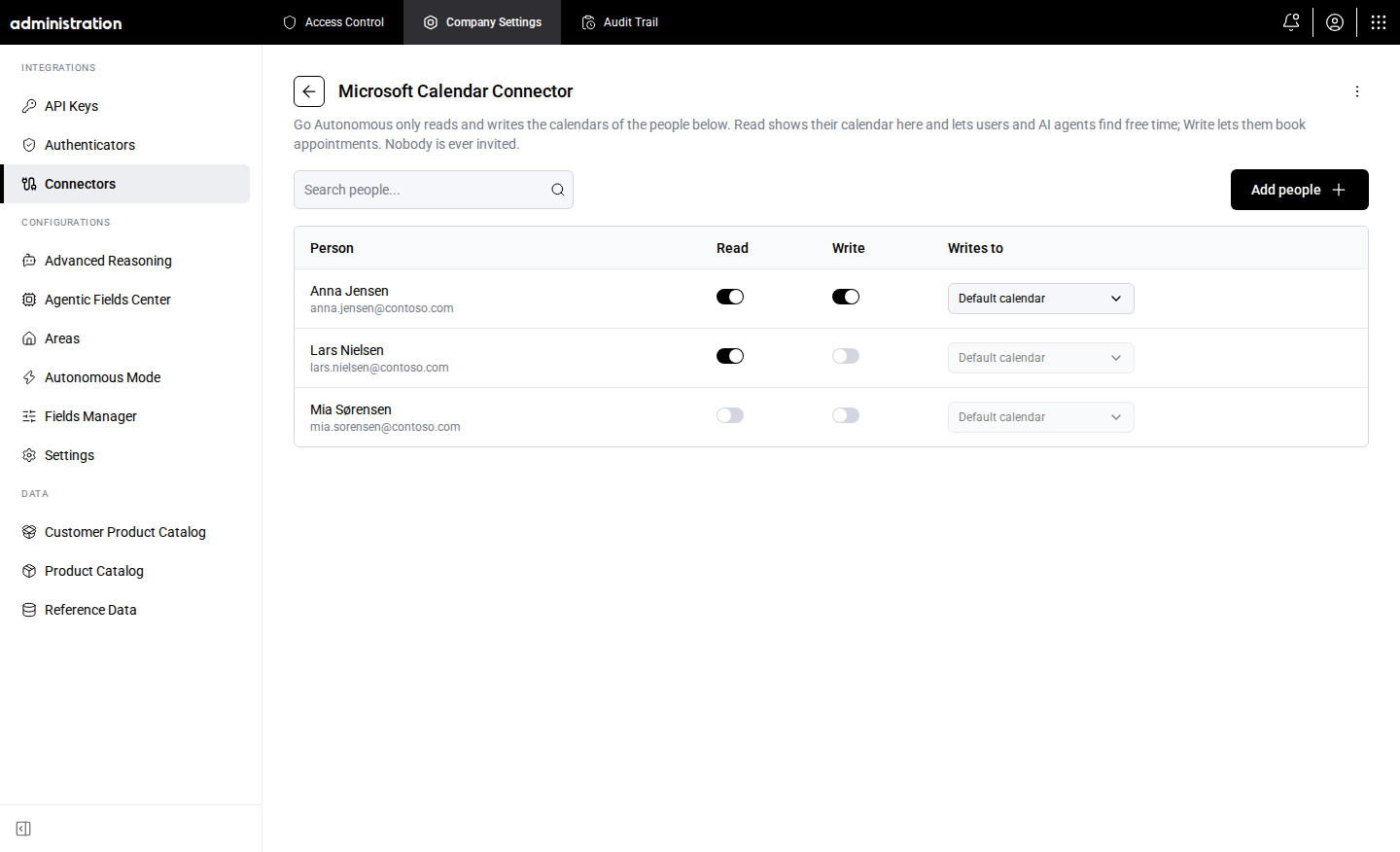
Go Autonomous only touches a calendar when both layers allow it:- Your list in Go Autonomous. Only the people added on the connector page can be read or written to, and each has its own Read and Write switch. Go Autonomous checks this list on every call.
- Microsoft’s own limit (recommended). Microsoft can restrict the app to a group of mailboxes, so even a mistake on our side can’t reach anyone else. Go Autonomous checks this when you add a person: if Microsoft refuses, the person is not added and you see why.
Limit the app to a group of mailboxes
Requires Exchange Online admin rights.
Calendars.ReadWrite grant from the app in Microsoft Entra, so only the scoped assignment remains. Ask your Go Autonomous Success Manager for the application ID of your environment.
Enable the connector
Requires Microsoft Azure AD admin rights and Go Autonomous admin rights.
1
Open the connectors
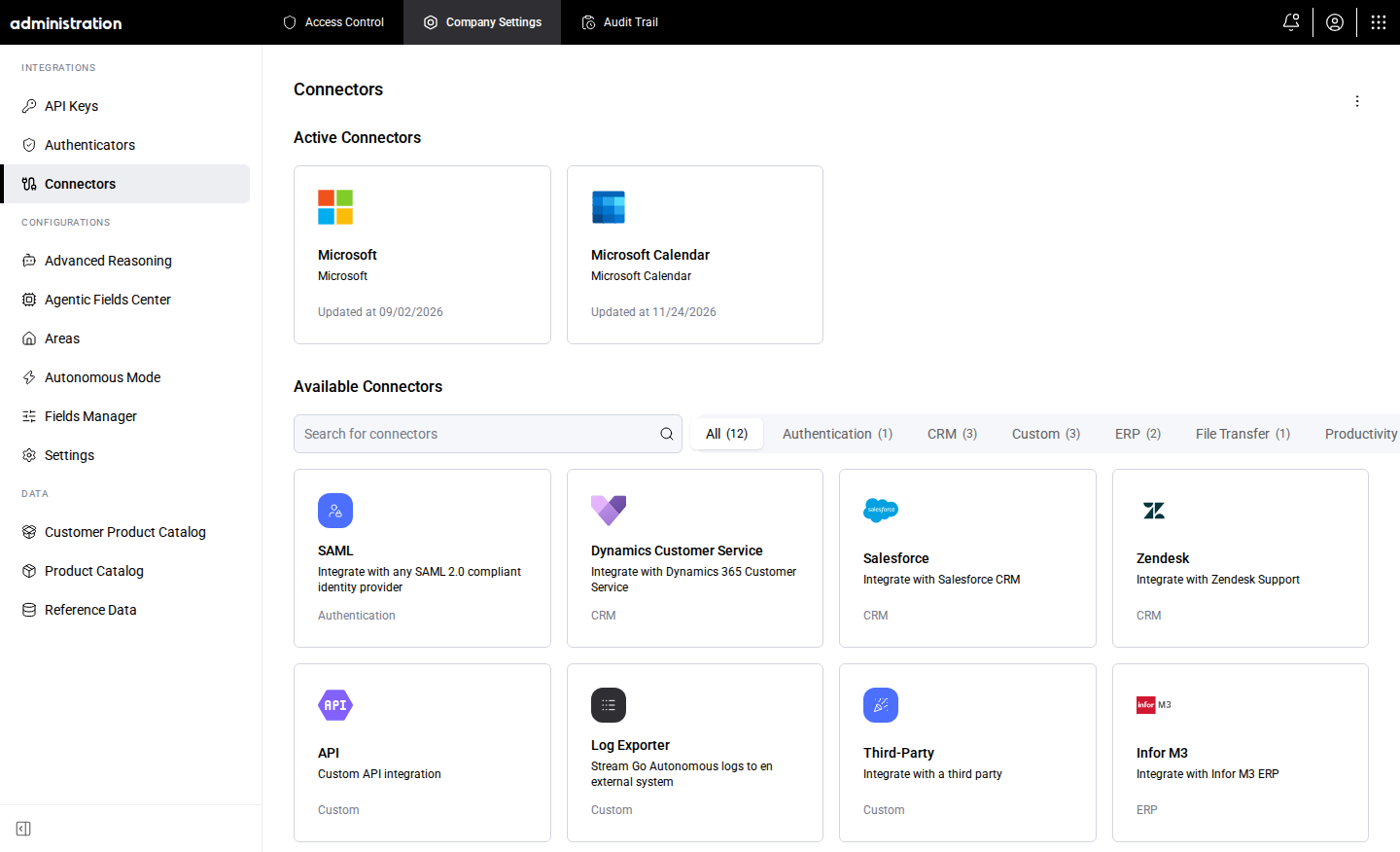
In Go Autonomous, open Company Settings and go to Connectors.
2
Add Microsoft Calendar
Under Add connection, click Microsoft Calendar. A Microsoft sign-in opens in a new tab.
3
Approve the app
Sign in with your Microsoft admin account and click Accept. Microsoft handles the sign-in; Go Autonomous never sees the credentials.
4
Wait for the connector
Go back to Go Autonomous. Microsoft Calendar appears under the active connectors within a few minutes.
Choose the people
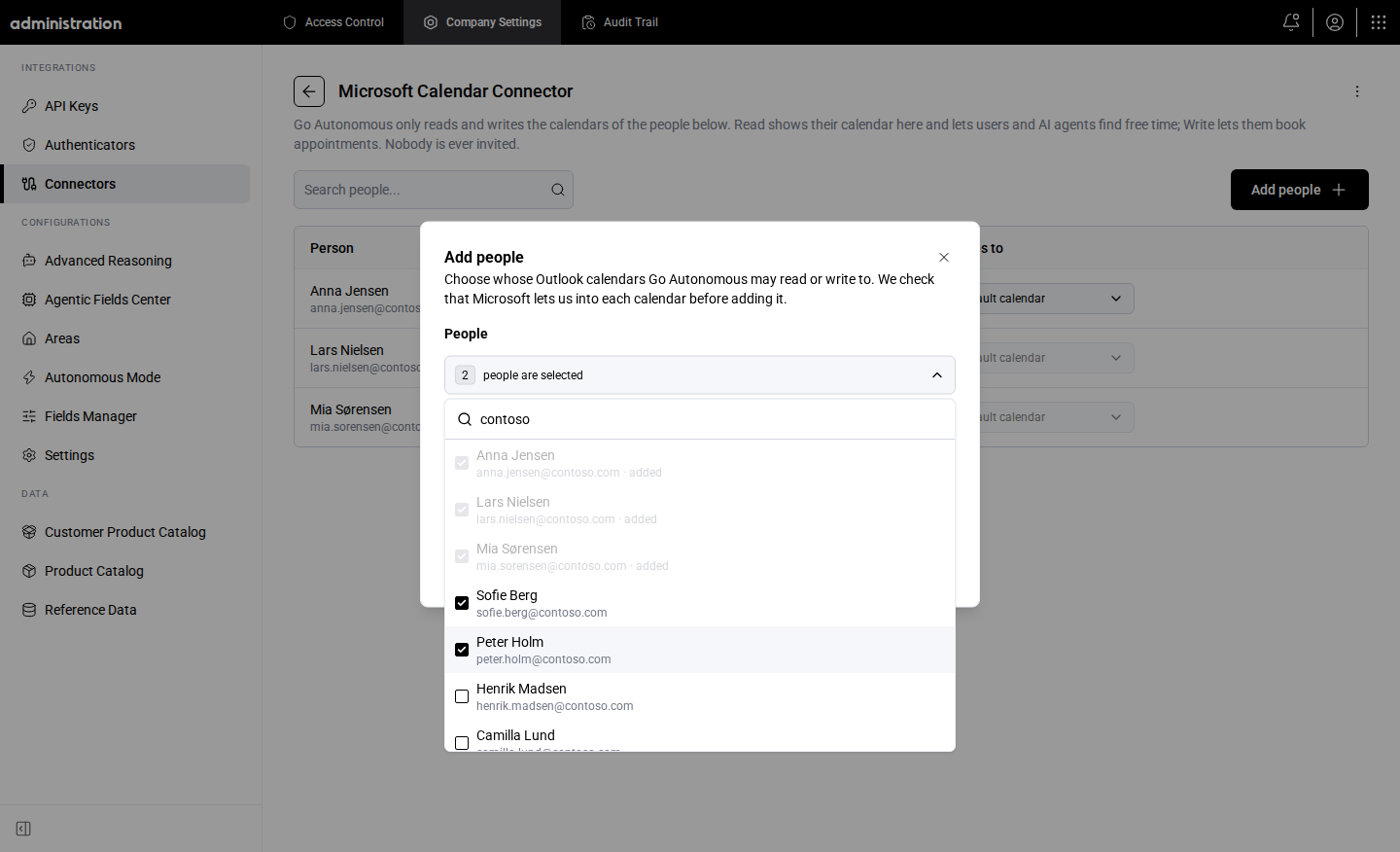
Click the Microsoft Calendar connector to open its page.- Click Add people, search by name or email, and pick one or more people.
- Choose what Go Autonomous may do:
- Read shows their calendar on this page and lets users and agents check when they are free.
- Write lets users and agents create appointments in their calendar.
- Click Add. Go Autonomous first reads each calendar once to check that Microsoft allows it.
Preview a calendar
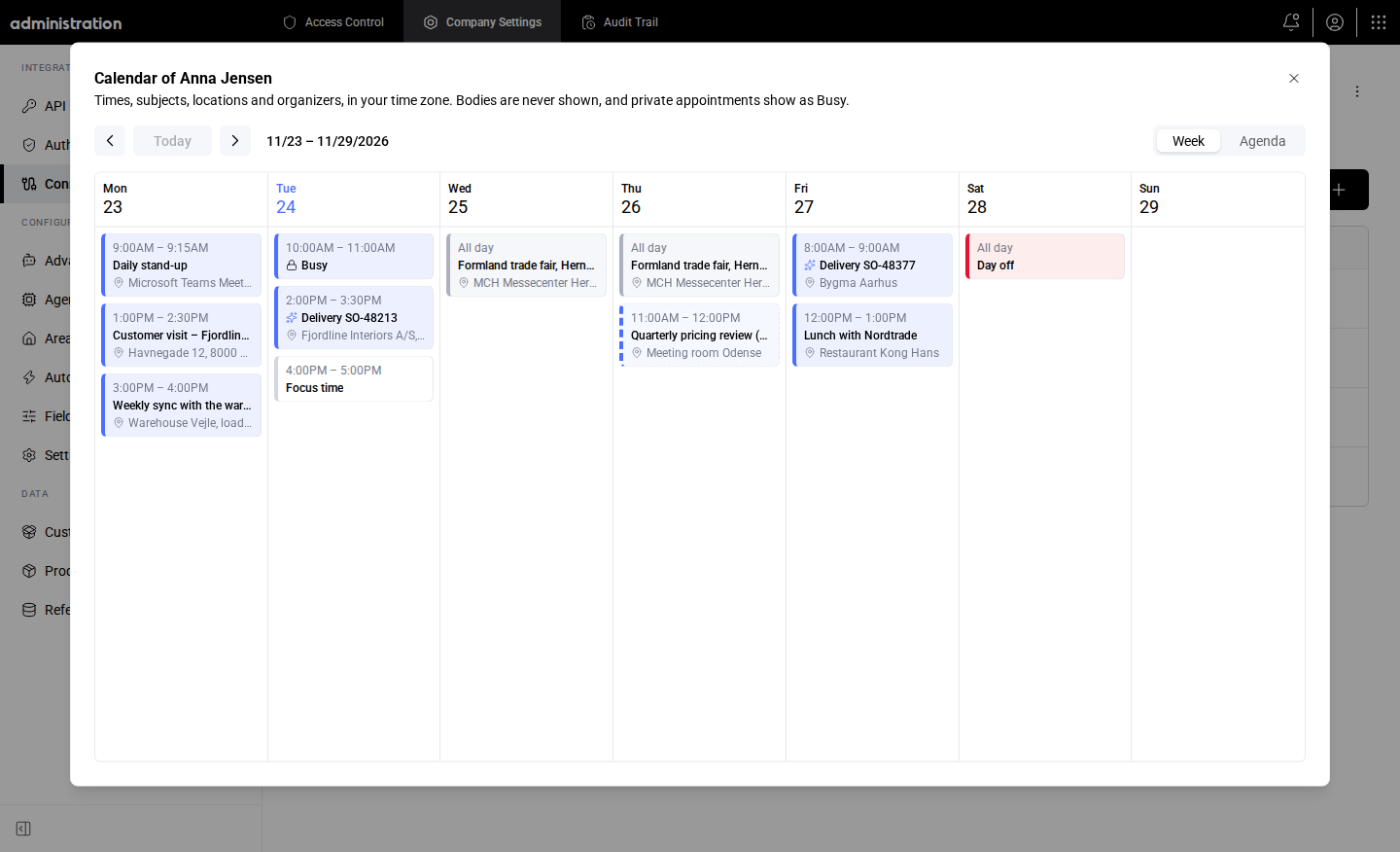
For anyone with Read on, hover the row and click the preview icon. You see their week, or an agenda, in your own time zone:- Time, subject, location and organizer of each appointment.
- Appointment bodies are never shown.
- Private appointments only show as Busy.
- Appointments created by Go Autonomous are marked with a sparkle.
Using the calendar from agents and the API
Once the connector is active, calendars can be read and booked by AI agents through the Go Autonomous MCP server, or by signed-in users through the PlatformApi REST API underv3/calendar.
Who can use it
- Any user with Flow access.
- Only the people on the connector page, and only what their switches allow: reading needs Read on, booking needs Write on.
- An external AI agent can only book if Allow changes was ticked when it signed in to Go Autonomous. Without it, the agent can still read.
Tools and routes
- Every tool and route accepts an optional
connector_id. Without it, the organization’s primary active Microsoft Calendar connector is used. - Times are ISO 8601 with an offset, for example
2026-11-24T09:00:00+01:00. - Bookings show in the audit log on the Connectors page, with the person who made them. Go Autonomous only ever changes or removes appointments it created itself.
Errors
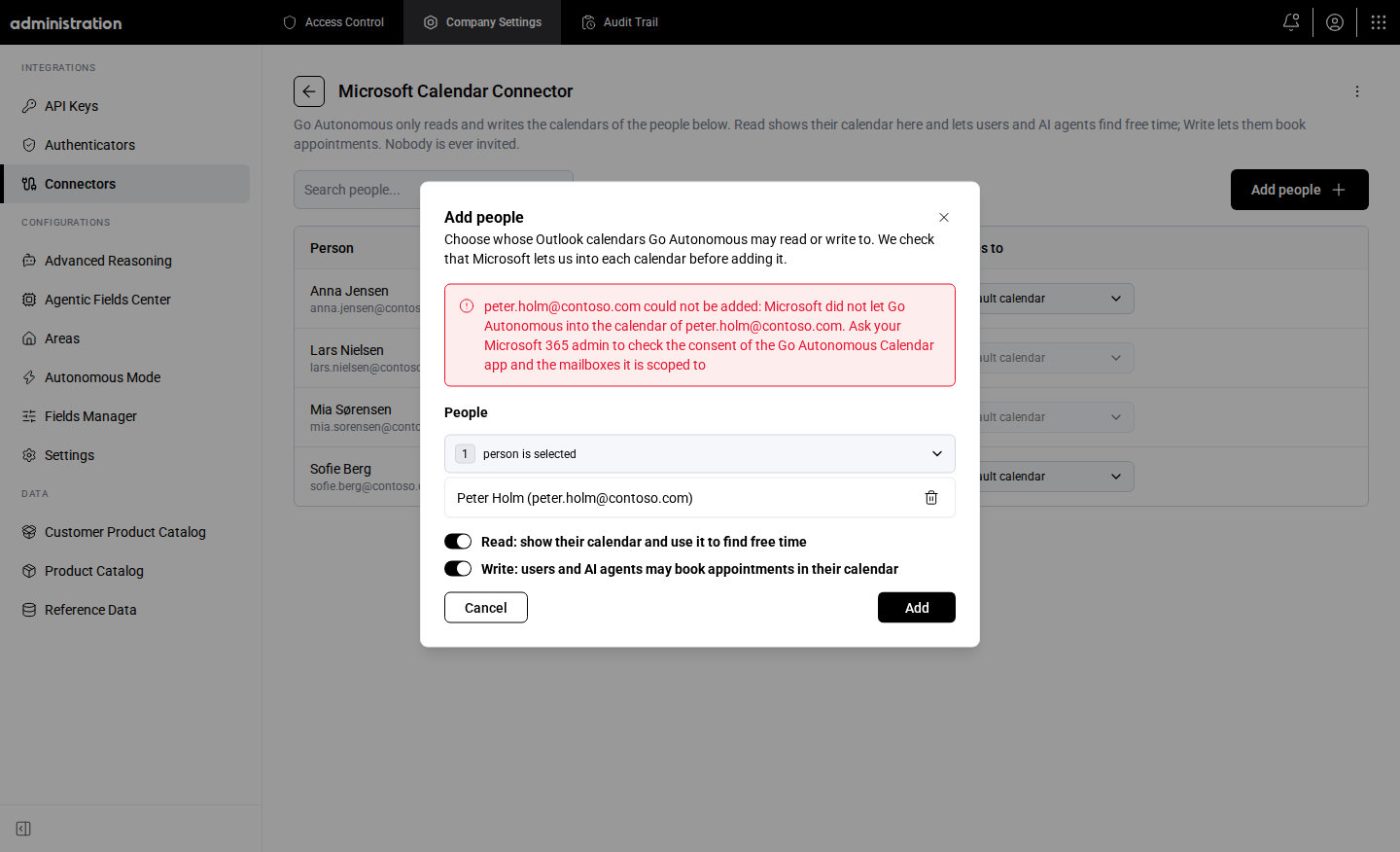
Troubleshooting
When Microsoft refuses a person while you add them, the Add people dialog shows the reason and keeps only that person selected. The people who could be added are already on the list.