Overview
Every action taken on a request in Flow is tracked. The History feature gives you a full audit trail — who changed what, when, and why. You can also revert individual changes or grouped edits, making it safe to experiment and correct mistakes.Accessing History
Click the History icon (clock icon) in the Flow toolbar to open the history panel. It displays a chronological list of all events and changes for the current request.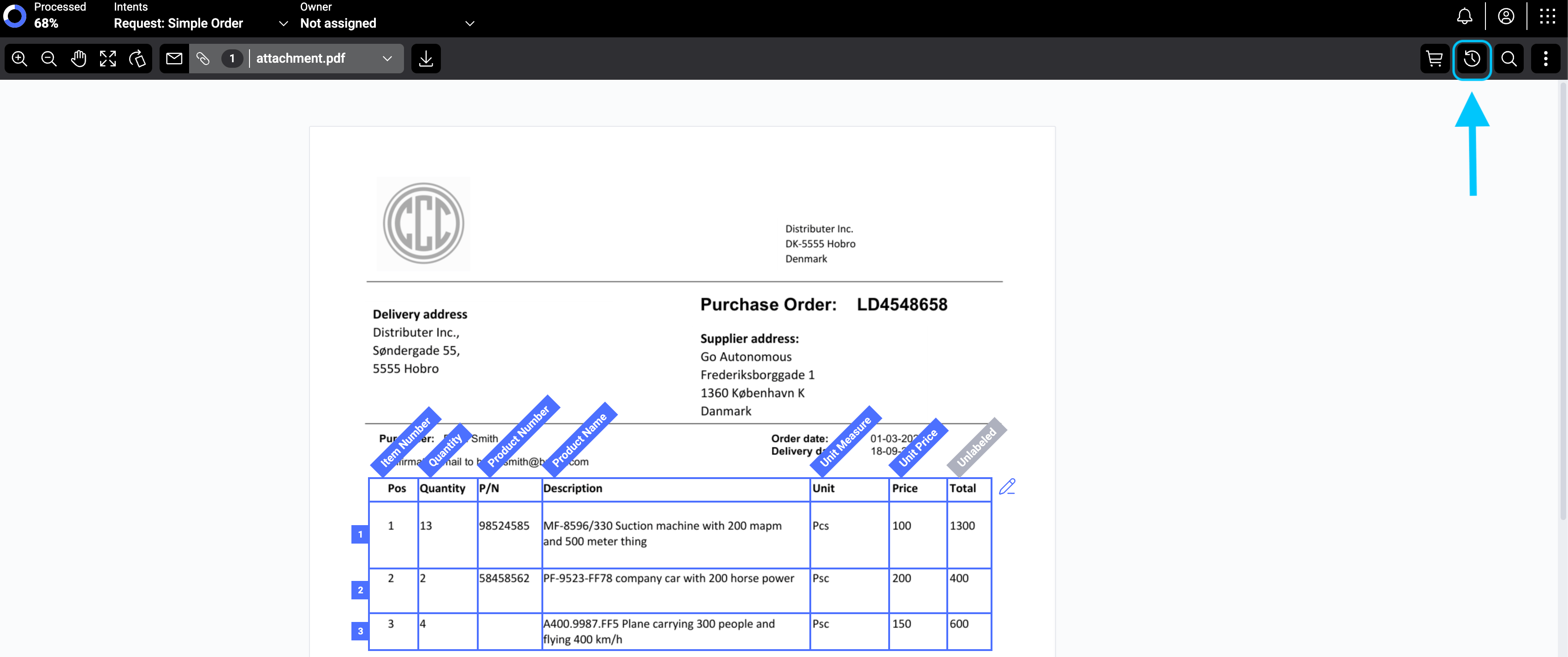
How to access the "History" tab
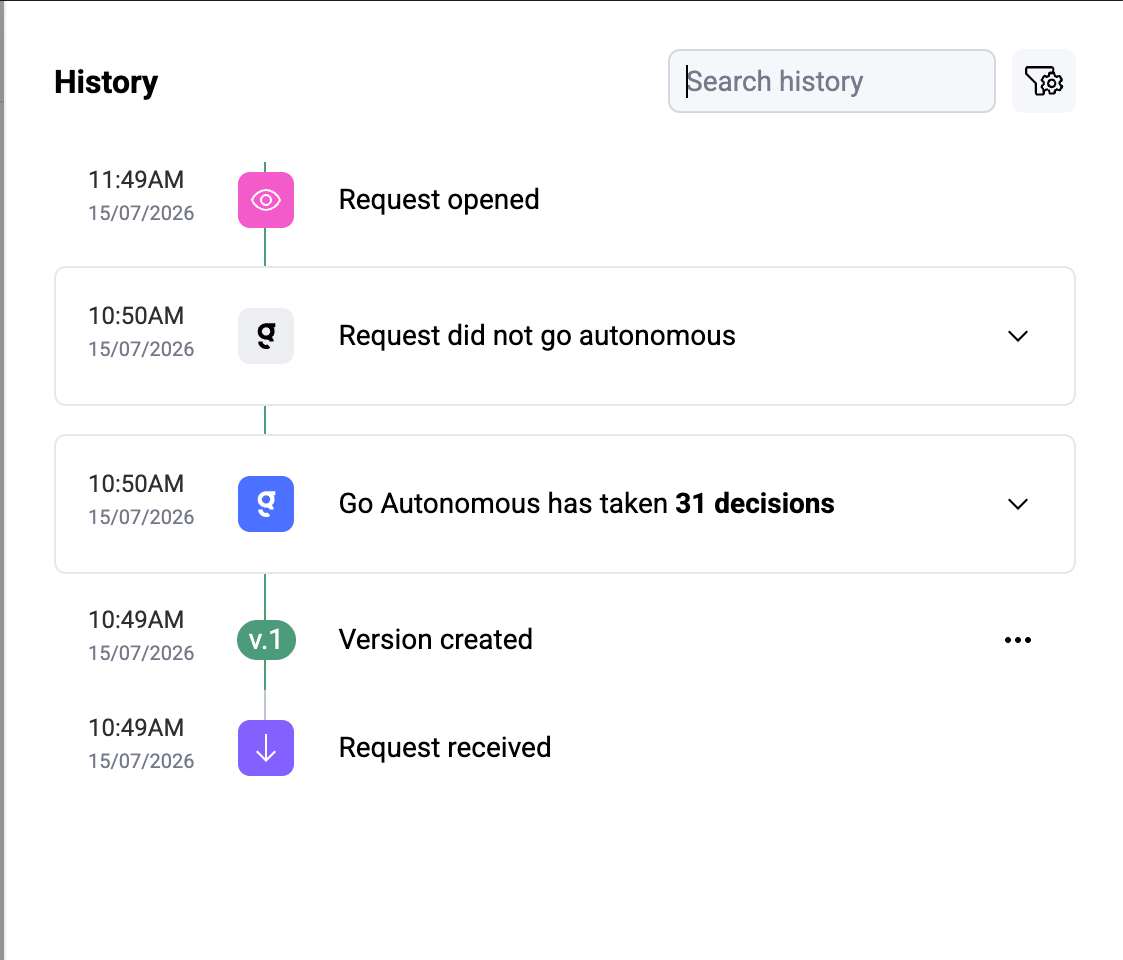
History Tab in Flow
What History tracks
History records a wide range of events:- Field changes — any modification to a product line field (quantity, price, product number, etc.), showing both the old and new values.
- Line additions — when a new product line is added, including the line details (product number, name, quantity).
- Line removals — when a product line is deleted, with the full line details preserved.
- Confirmations — successful and failed confirmation attempts, with any error messages.
- Reprocessing — when the AI extraction was re-run on the request.
- Line rearrangement — when product lines are reordered.
- Postpone actions — when confirmation is deferred for later.
Reading History entries
Each entry in History shows:- Source — who or what made the change (a user name, “AI,” or “System”).
- Field name — which field was changed, with clear labels (e.g., line numbers for products, “(delivery)” or “(billing)” for address fields).
- Old and new values — displayed as readable values rather than raw system codes.
Related changes are grouped together. For example, if adding a product line fills in the number, name, and price simultaneously, these appear as one grouped event.
Reverting changes
You can undo changes directly from History:1
Find the change you want to undo
Scroll through History to locate the specific change or group of changes.
2
Click Revert
Click the revert button on the individual change or on the entire group. For grouped changes, you can choose to revert the whole group or just specific fields within it.
3
Verify the result
The product cart updates immediately to reflect the reverted state. Review the changes to make sure the result is correct.
Recovering deleted lines
If a product line was accidentally deleted, History lets you recover it. Find the “line removed” event and click revert — the full line is restored with all its original data.Filtering History
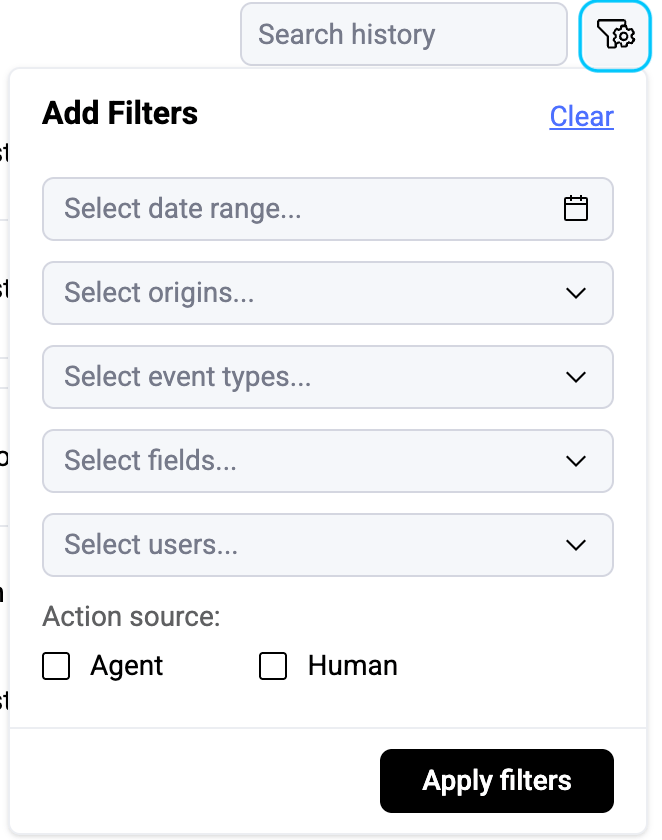
For requests with many changes, use the History filter to narrow the view:- By event type — show only additions, deletions, field changes, or confirmations.
- By field name — focus on changes to a specific field (e.g., only quantity changes).
- By user — see changes made by a specific team member.
- By source — filter between automated (AI) changes and manual changes.
- By date — narrow to a specific time range.