

Overview
When you open a request in Flow, a toolbar appears at the side and top of the interface. It gives you access to document tools, AI assistance, collaboration features, and request management — all without leaving the current screen. The toolbar is split into two areas:- Left/side toolbar — document interaction and viewing tools.
- Right toolbar — request-level actions and panels.
Left toolbar
Agent view
Opens the AI-powered Agent view panel, which guides you through the extraction review step by step — surfacing each extracted field as a question, flagging warnings, and supporting address verification. Read more about the Agent view →
Simulation
Runs a simulation of how the AI would process the current request. Use this to test extraction logic and verify how Go Autonomous would handle the document before confirming.
Collaboration
Opens the collaboration panel, where you can pin discussion threads to specific parts of the document. Use it to ask questions, flag exceptions, or request clarifications — with @mentions, file attachments, and real-time updates. Read more about Collaborations →
Table Creation Mode
Step 1 of the Savvy Tables workflow. Click and drag on the document to draw table boundaries over unstructured content. Save your tables with Ctrl+S or the Save button, with the option to apply the structure to multiple pages. Read more about Savvy Tables →
Table Edition Mode
Step 2 of the Savvy Tables workflow. Once tables have been drawn, switch to Table Edition Mode to adjust them — add or remove rows and columns, resize dividers, and fine-tune the structure. Read more about Savvy Tables →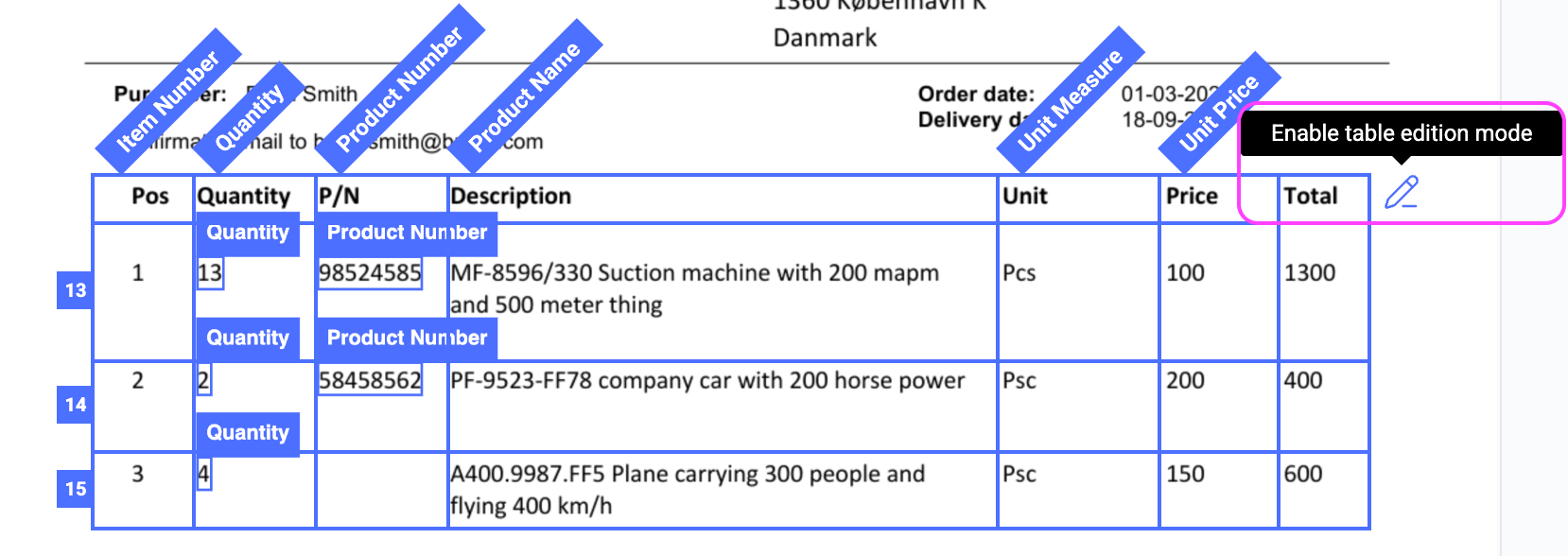
Zoom In / Zoom Out
Increase or decrease the document zoom level for better readability. Useful when reviewing dense tables or small text.
Pan Mode
Switch the cursor to a pan tool, letting you click and drag to scroll around the document freely rather than using the scrollbar.
Fit to Screen
Resets the zoom and position so the full document fits within the visible area. Handy after zooming in on a specific section.
Rotate
Rotates the document view. Use this when an attachment arrives in the wrong orientation.
Attachments
Opens a dropdown listing all attachments on the request. Click any attachment to switch to it in the document viewer.
Download
Downloads the currently viewed document attachment to your local machine.
Right toolbar
Product Cart
Opens the product cart panel, where all extracted line items are listed. Review, edit, and manage product lines here before confirming the request. Read more about the Product Cart →History
Opens the full audit trail for the request — every change, who made it, and when. You can also revert individual changes or restore deleted lines from here. Read more about History →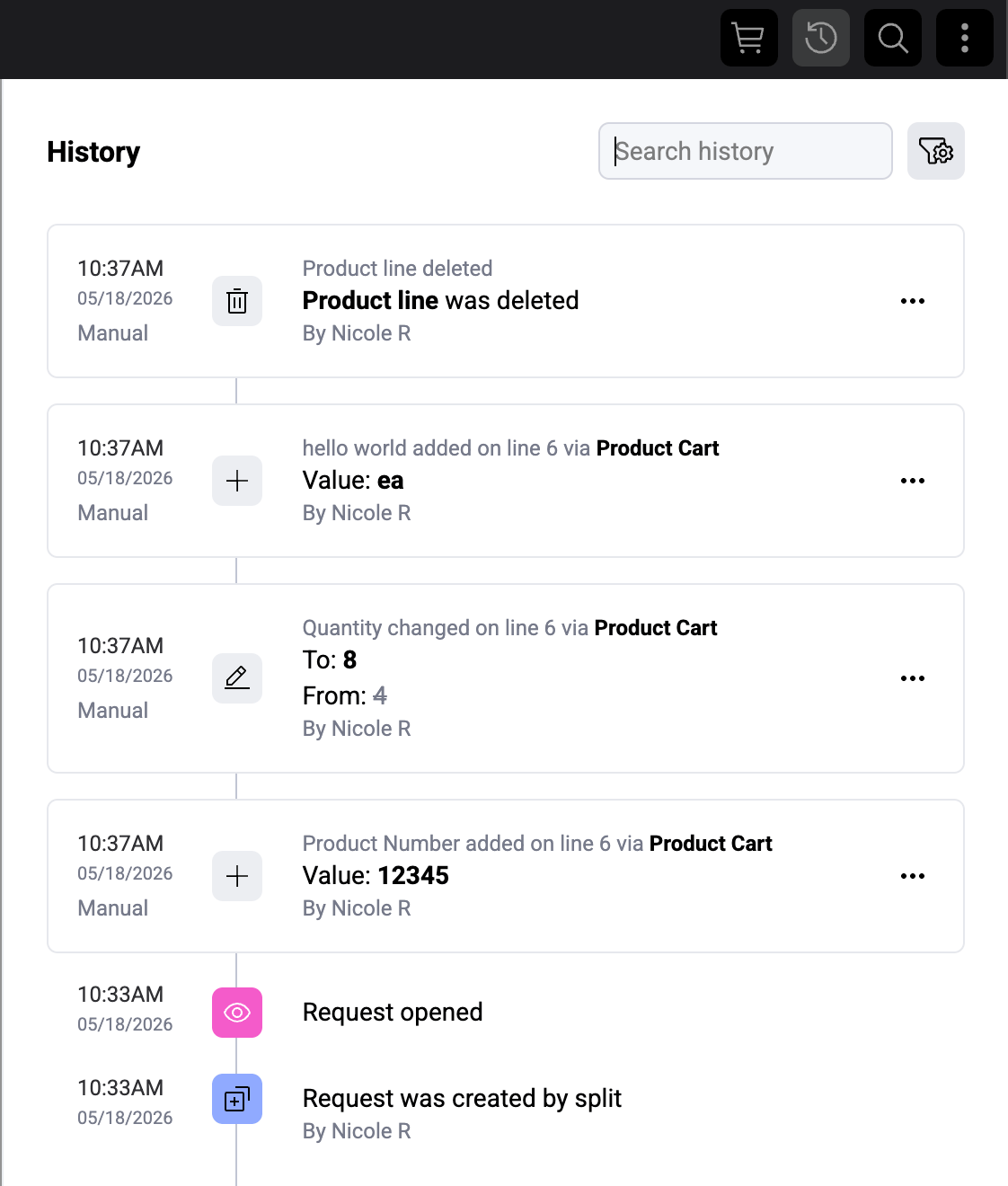
Search
Opens an in-document search bar (Ctrl+F) so you can find specific text within the current attachment quickly.Flow Menu (⋮)
The overflow menu contains request-level actions:- Activate / Deactivate Agent view — toggle AI Agent view guidance on or off for this request.
- Reprocess Request — re-run AI extraction on the current document. Use this if the original processing missed something or if you’ve made document changes. This action is disabled on orders created by mail splitting; revert the split first if you need to reprocess the source request.
- View settings — toggle display preferences that persist across every request you open. Each setting can be flipped on or off independently:
- Table always on — always show the extracted-lines table below the document viewer, even when the document is not a table-heavy attachment.
- Extractions — show the Extractions menu alongside the document so you can jump between extracted fields without opening the Agent view.
- Unsolved tasks — highlight fields that still require attention (missing values, low-confidence extractions, unresolved warnings) so they stand out during review.
- Always expand summary groups — open every group in the request summary by default instead of collapsing them.
- Always open Agent view and Product cart — force the Agent view and the Product cart panel to open side by side on every request, overriding the default behavior that only opens both panels automatically on very wide screens. Best suited for large monitors — on smaller screens the two panels can crowd the document viewer.
What’s next
- Review and confirm orders for the complete request workflow.
- Use Savvy Tables to extract data from unstructured documents.
- Work with the product cart to manage extracted line items.